Before you begin
Sign in to the correct organization and make sure this product is enabled. Creation and administration require the appropriate team role. Screens may differ with your language and permissions.
Choose an active person and campus with staff access to both Volunteers and People. Person and campus stay fixed after creation. Recorded checklist progress is not a credential verification or permission to serve.
Church owners and administrators add physical, online, or temporary campuses in Settings → Campuses. In Team & permissions, open Campus & product permissions to set each person’s campus, role, and products. A campus administrator manages records; church settings remain with church administrators and owners.
Read progress without assuming approval
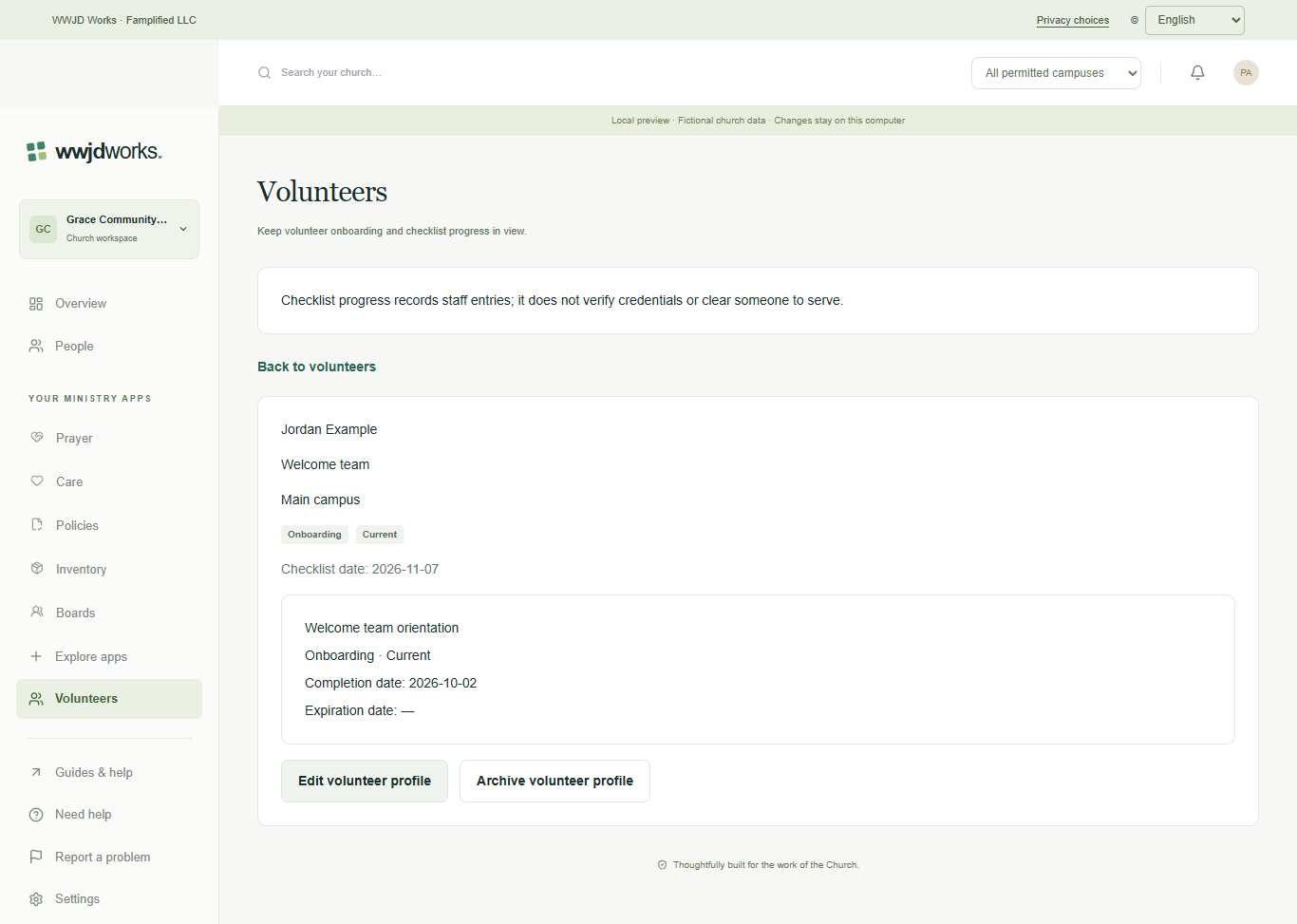
Filter profiles by campus, lifecycle, checklist, ministry or Assigned to me. Checklist calculations use the displayed church calendar date. Expiration is valid through that date; Expiring soon includes today through 30 days ahead. Missing completion means incomplete; no items means no checklist configured. Pages may be empty with more to read and do not show a global total. Recorded completion does not verify credentials, background checks or suitability to serve.
Check your workspace notices
Assigning you as coordinator can add a notice under the bell. Open the notice to view the current profile. Changing the profile can remove its assignment notice; archived, paused or inaccessible profiles are hidden when you open the panel again. A notice also appears when a checklist item expires within 30 days, and another once it has expired. They describe recorded checklist dates, not verified credentials. Close and reopen the panel to refresh it; no recipient emails are sent.
Search and download limited batches
Search by current person name or ministry and combine the list filters. Download batch CSV or JSON rechecks current access and data from this page position, returning at most 100 minimal profile summaries. It may differ from the displayed page and is not a complete church export or fixed snapshot. The result says whether more profiles remain, even for an empty batch. Choose Continue after downloaded batch to review the next position before another explicit download. Changing the view discards an unfinished download. After an error, restart the list; no download retries automatically. Files contain names; share them only with authorized people.
Edit, archive and reopen explicitly
Use Edit volunteer profile to update the ministry, coordinator, lifecycle or checklist. Remove an item only when intended; removing it is saved with the next save. Completion cannot be in the future; expiration requires completion and cannot precede it. Archive requires confirmation and retains the person link and checklist. Archived profiles cannot be edited. Reopen requires an active person and campus, checks the coordinator again and returns to onboarding, never automatic approval.
Check uncertain saves before retrying
If creation is interrupted or a duplicate is reported, keep the frozen draft and choose Check for existing volunteer profile. Open the existing profile if found. If none is found, return to the draft, reselect the person and submit explicitly. For interrupted edits or conflicts, copy the draft and acknowledge reloading the saved profile. No automatic retry occurs. Access loss clears displayed data; ask an administrator rather than creating another profile. Volunteers does not include scheduling, screening documents or recipient emails.
If something looks different
Missing actions usually depend on your role, the record’s visibility or status, or whether the product is enabled. Ask your organization administrator before creating duplicate records or changing access.