Open Inventory
Choose the correct organization, open Inventory, and select New asset. Start with a recognizable name that someone can search for, such as the item type and its usual use.
WWJD Inventory · Part of WWJD Works
Know where an item belongs and who is looking after it.
Choose this and one other app free. No credit card needed.
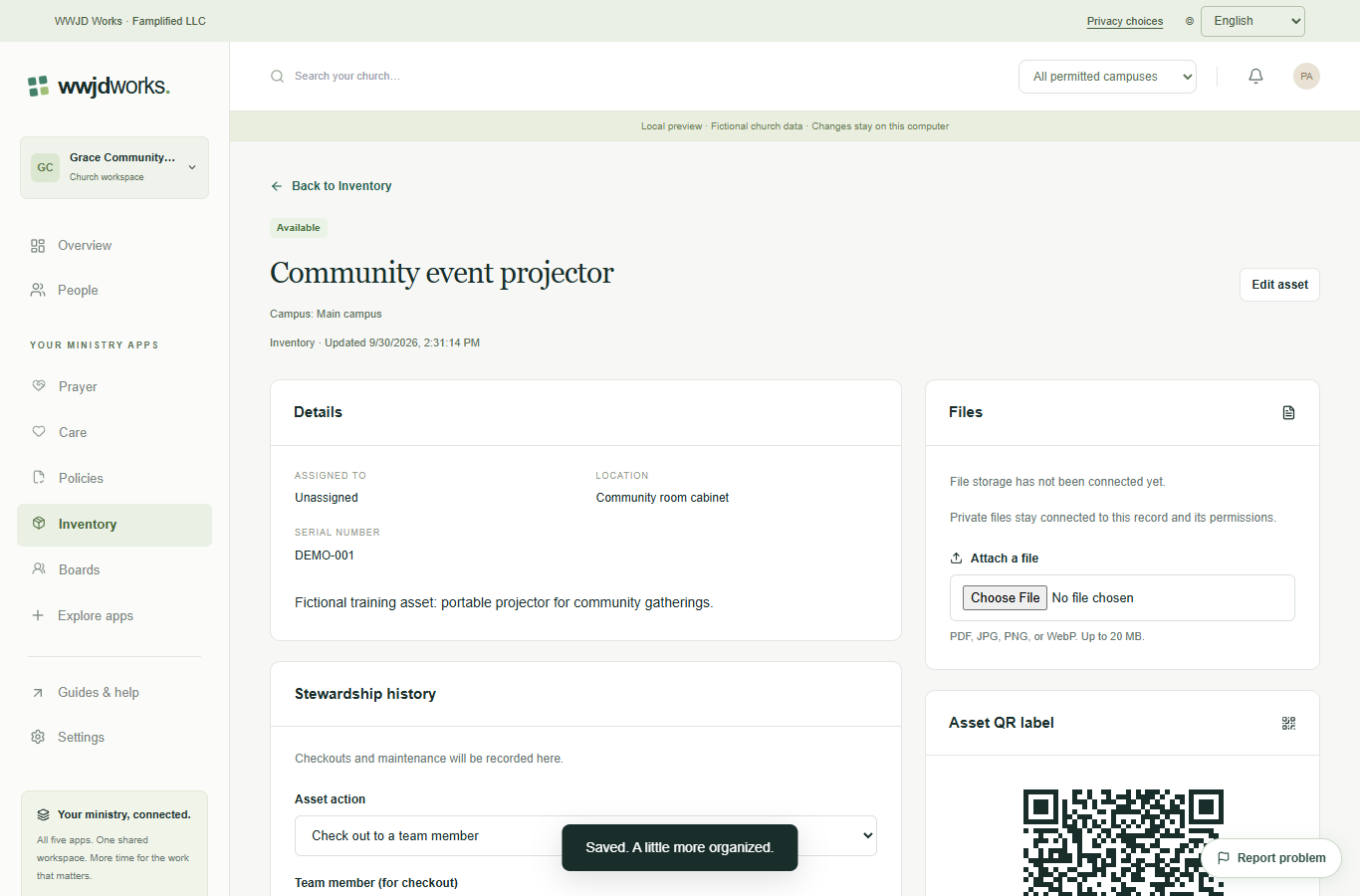
Choose the correct organization, open Inventory, and select New asset. Start with a recognizable name that someone can search for, such as the item type and its usual use.
Add a description, storage location, and serial number when available. Purchase and warranty dates are optional. Select Create asset; new assets start available rather than already checked out.
Select the asset title to review its details. In Asset QR label, choose Download label. The QR code opens this asset’s page; scanning does not bypass sign-in or organization permissions.
Create a useful equipment record and a QR label your team can scan.
Read the guide Everyday workflowsKeep a clear history of equipment custody and service.
Read the guideNo. Every product uses your WWJD Works account and the same organization workspace. Your team’s roles and permissions determine access.
Choose any two Standard products on the Free plan. Works includes all five current Standard products. Plans and limits apply per organization workspace. See simple pricing
Every product has a learning hub with step-by-step guides, actual screenshots, and a captioned video. The Guides & help link inside your workspace opens the relevant hub.
Keep a clear history of equipment custody and service. Read the guide
These products share your WWJD Works login, organization, permissions, and plan. You can add another product without creating a separate account.
Start free