Keep your church roll in People
People is your church’s shared list of everyone you serve. Every app uses the same person records, campuses and permissions, so details are entered once.
Staff who can edit People can add and update people. Membership stages and your own fields are set up by the church owner and church-wide administrators in Settings.
Watch tutorial — Membership stages, fields and tags
1. Add a person and their details
Open People and select New person, or open someone and select Edit person. Besides name, email, phone and household, you can record a second email and phone, a birthday, gender (No answer, Male or Female) and a home address. Leave anything you don’t need blank; empty details are not shown on the person’s page.
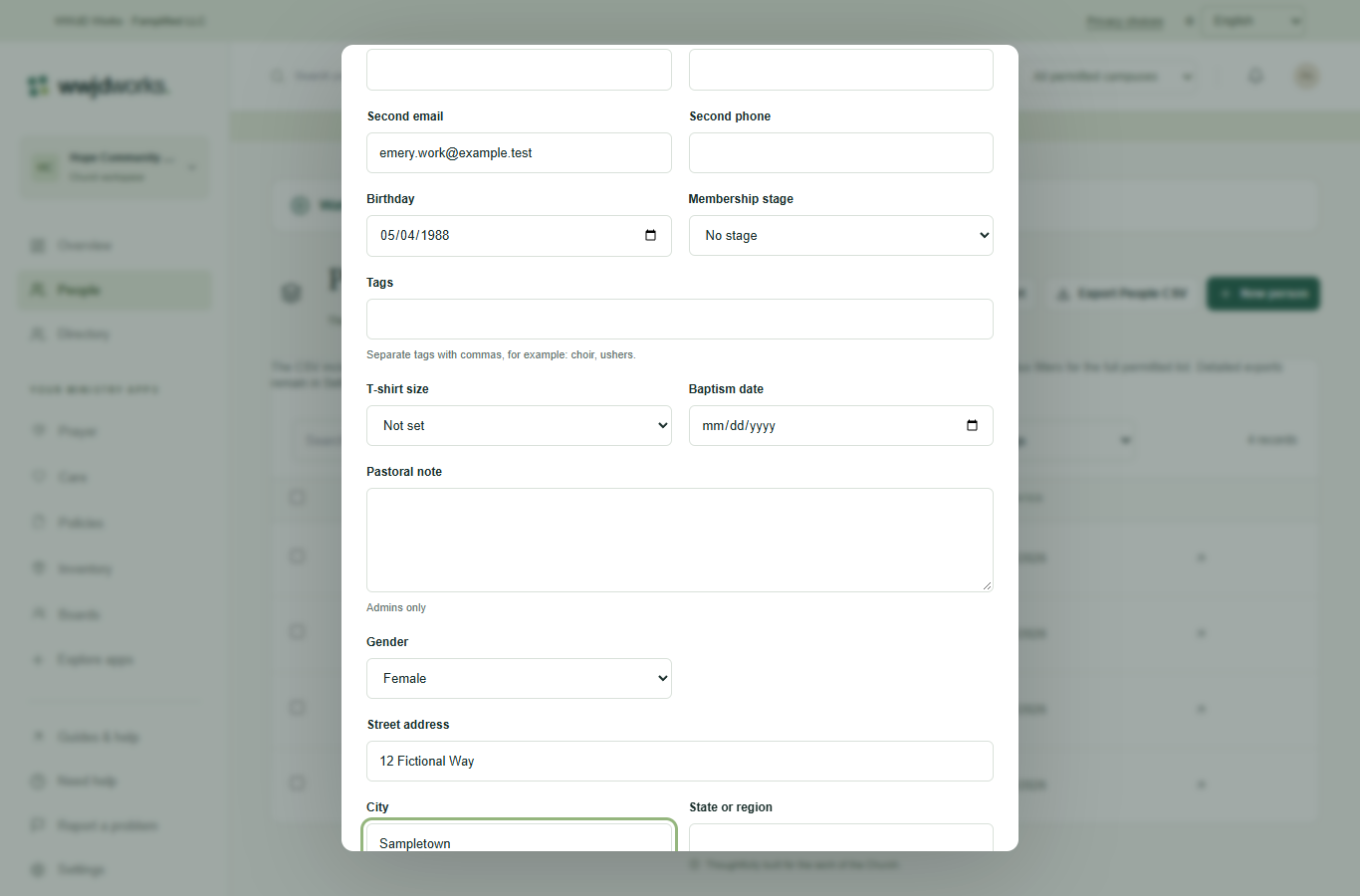
Person details in the editor · English interface shown with fictional training data. Select the image to enlarge. 2. Track membership stages
Stages show where each person is on your church roll, for example Visitor, Regular attender and Member. In Settings, open Membership to rename, reorder or add stages; a stage can be removed only when nobody is in it. A stage is only a record of where someone is; moving people between stages doesn’t change whether they are Active, Guest or Inactive.
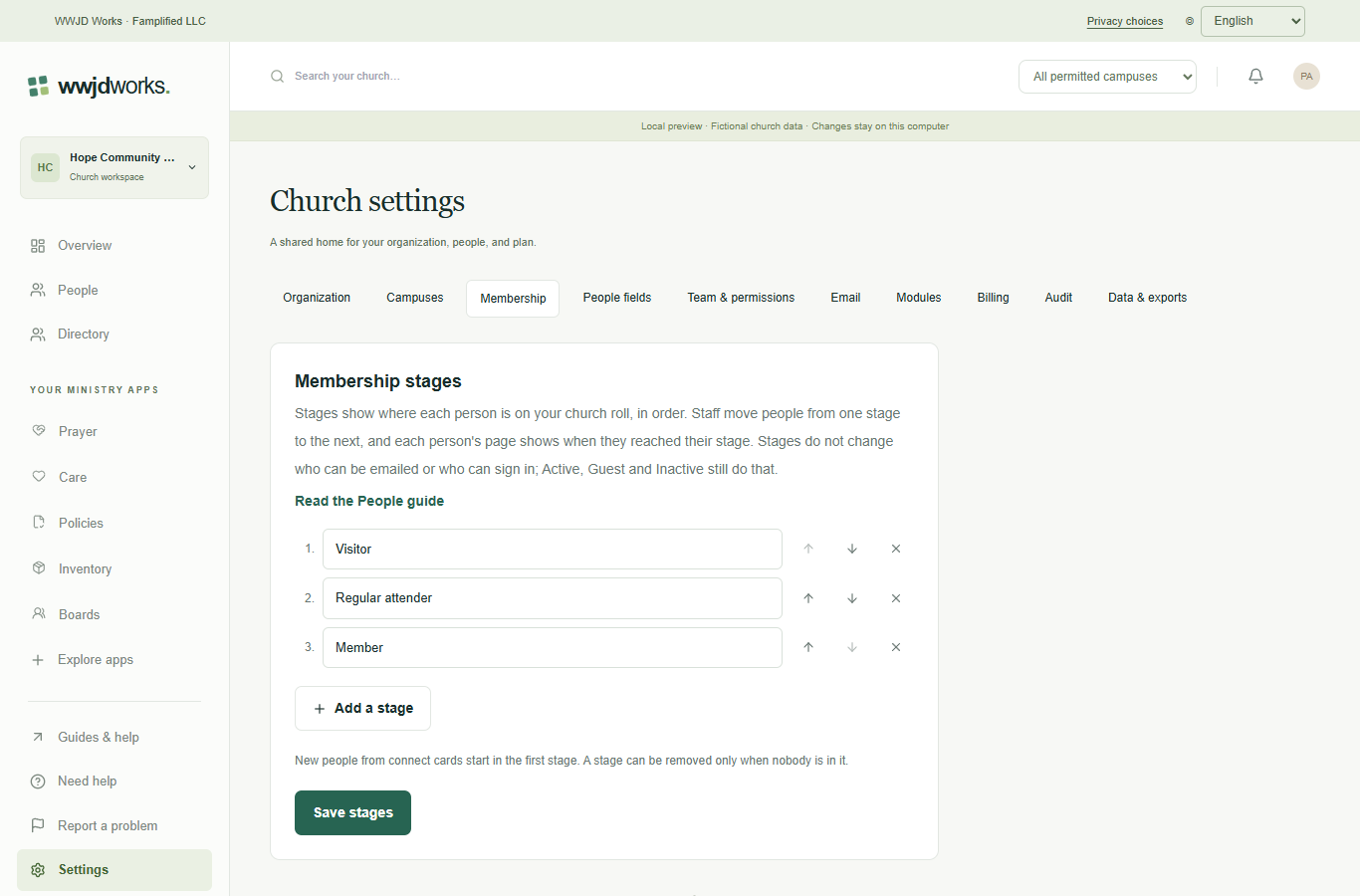
Membership stages in Settings · English interface shown with fictional training data. Select the image to enlarge. To move people along, tick them in the People list, choose Move to stage, pick the stage and the date of the change, and select Move. You can also change one person’s stage in the editor. Each person’s page shows their stage, the date they reached it and a short stage history. New people from connect cards start in the first stage.
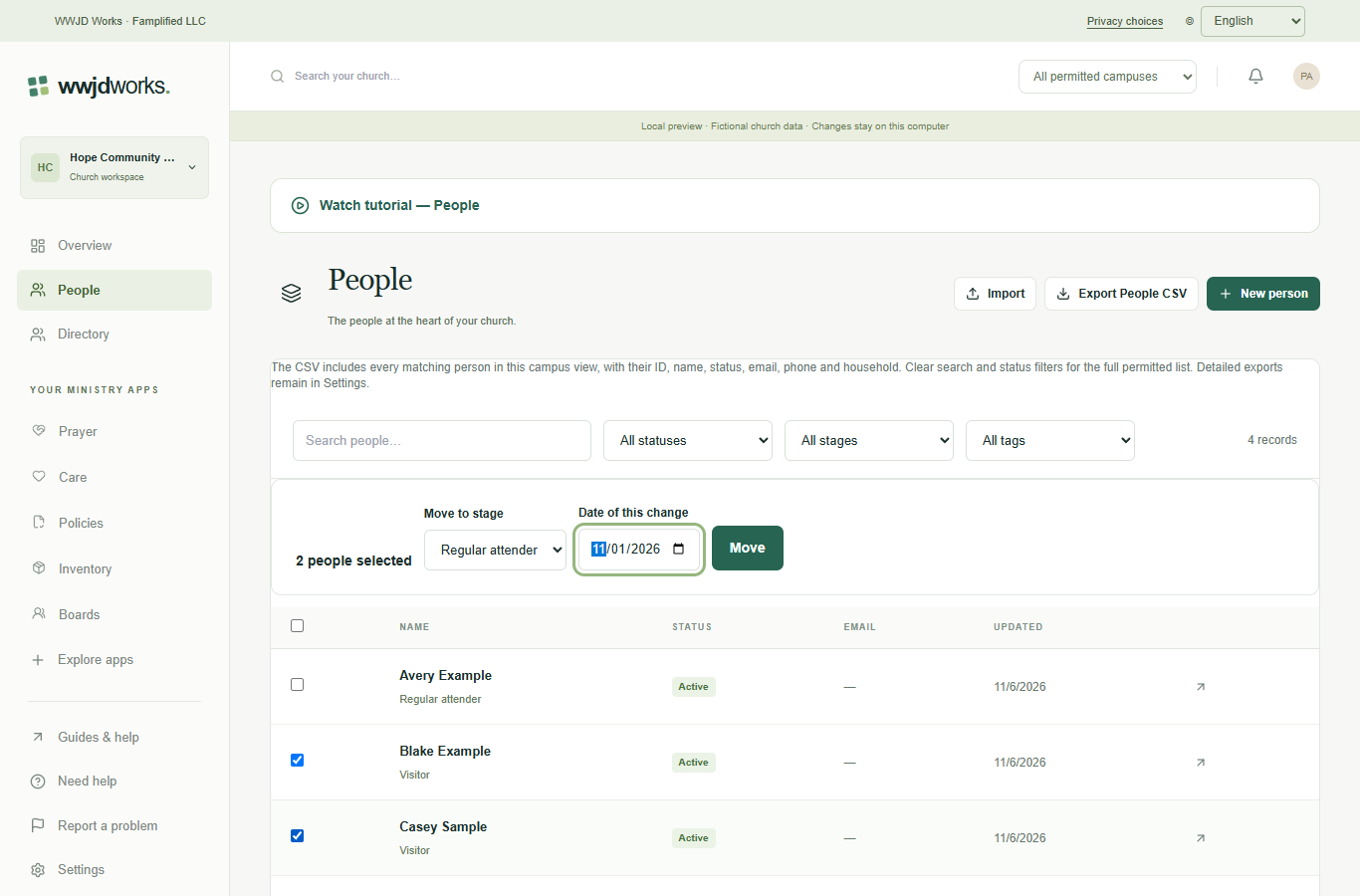
Moving several people to a stage at once · English interface shown with fictional training data. Select the image to enlarge. 3. Add your own fields and tags
In Settings, open People fields and select Add a field. Choose short or long text, a date, a whole number, yes or no, or a choice from a list, then select Save fields. Mark a field Admins only to hide it from other staff. A field’s type cannot change after it is saved; archive a field or option to hide it, and its saved answers come back if you restore it.
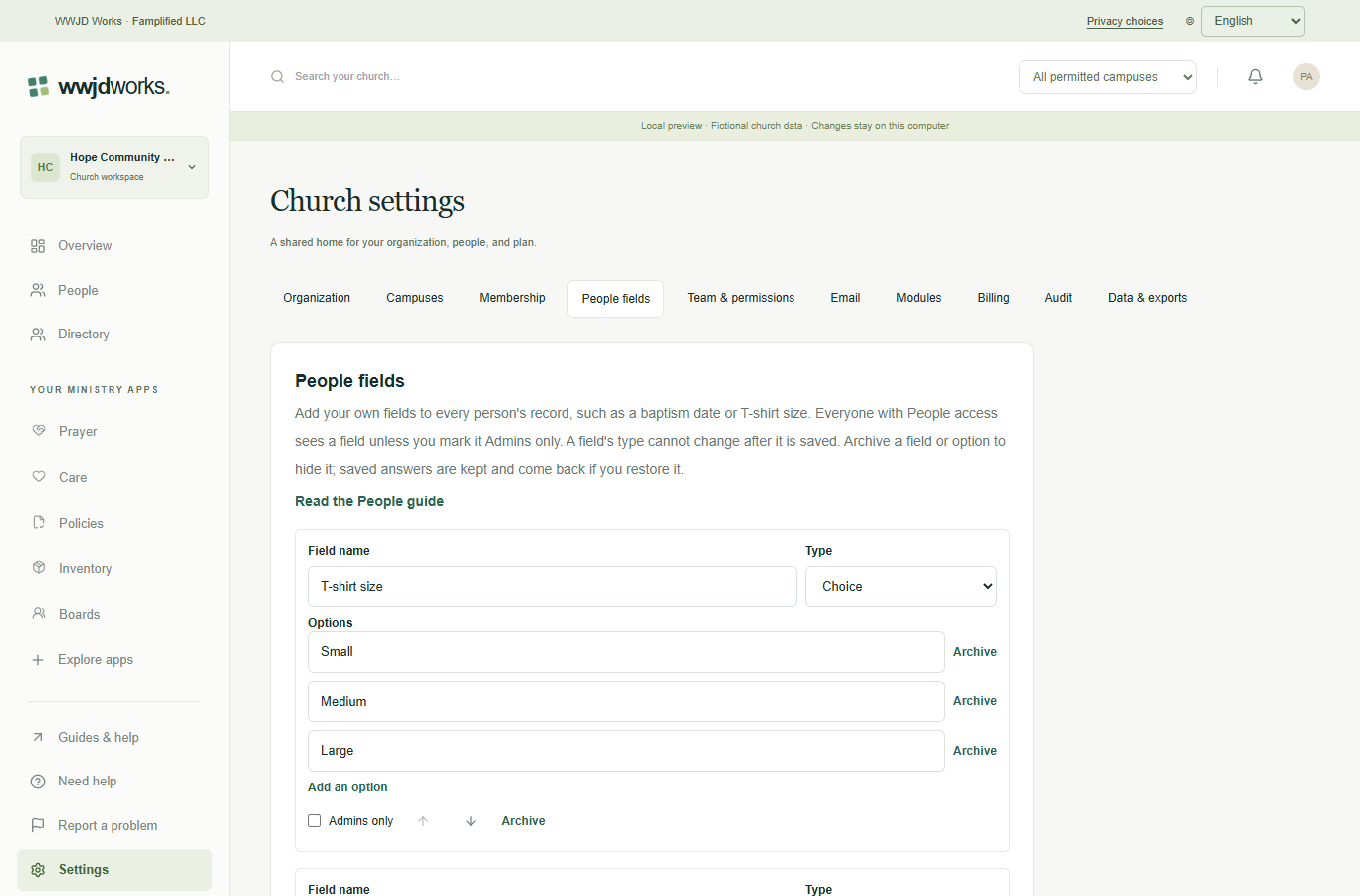
Your own People fields in Settings · English interface shown with fictional training data. Select the image to enlarge. Your fields appear when you edit a person, together with Tags. Separate tags with commas, for example: choir, ushers. In the People list, use Filter by tag and Filter by membership stage to find the people you need.
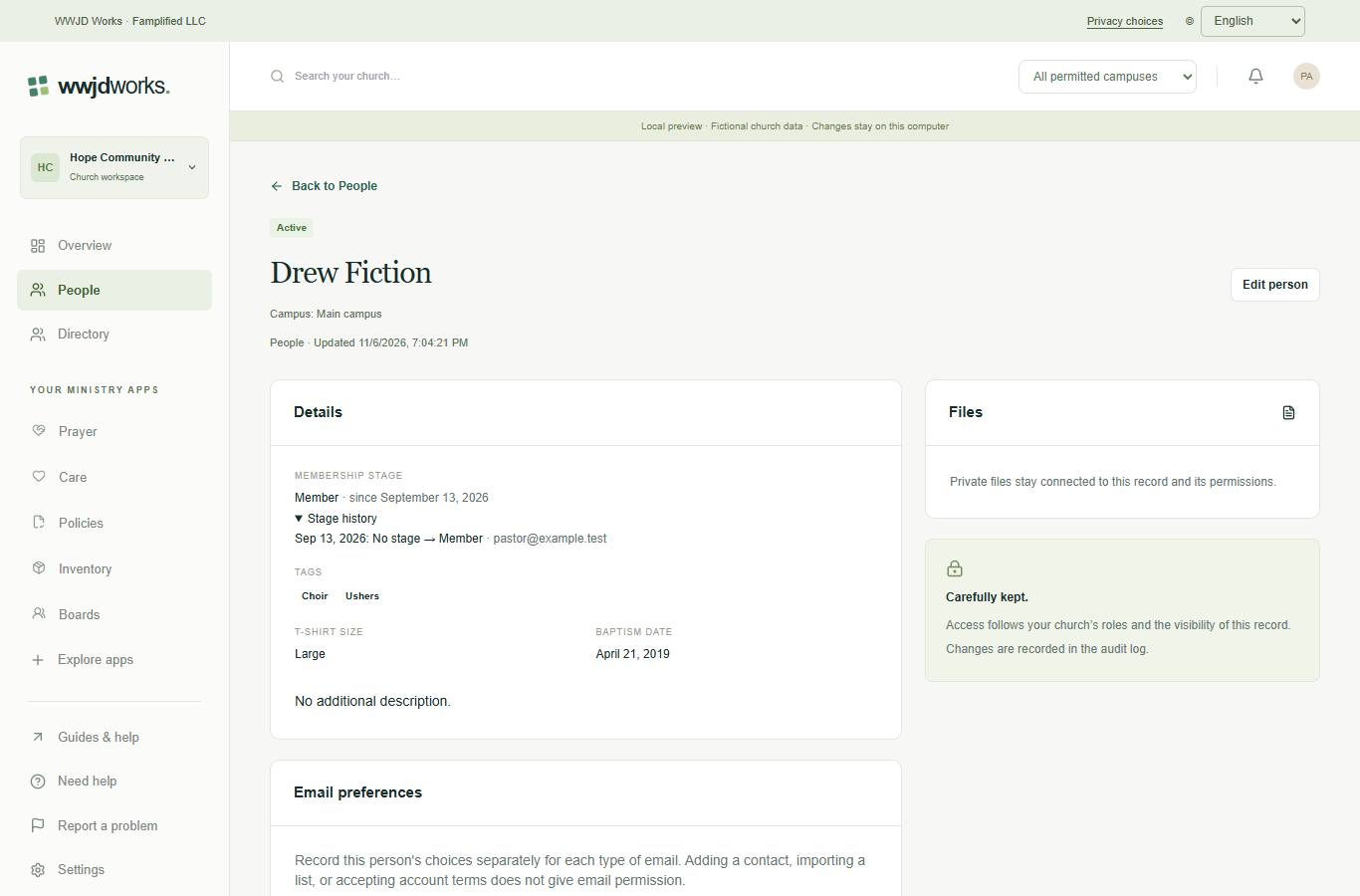
A person’s page with stage, fields and tags · English interface shown with fictional training data. Select the image to enlarge. 4. Bring details from another system
The People import matches common column names for these details, membership and your own fields, and lists any columns it will leave out. A column you have no field for can become a new text field with one click. Dates such as 5/4/1980 can be read month first or day first.
Read the import steps in the setup guide · Moving from Planning Center, Breeze or ChurchTrac?
5. Export your list
Export People CSV in the People list downloads the people that match your search and filters, with names, status, email, phone and household. The church owner and church-wide administrators can download everything in Settings, under Data & exports, including each person’s current stage and the date they reached it, your own fields and tags.