Before you begin
Sign in to the correct organization and make sure this product is enabled. Creation and administration require the appropriate team role. Screens may differ with your language and permissions.
Choose one campus with current Operations staff access. Records stay at that campus. All permitted campuses does not combine records. Archived campuses are read-only; requests have narrower visibility than team tasks.
Church owners and administrators add physical, online, or temporary campuses in Settings → Campuses. In Team & permissions, open Campus & product permissions to set each person’s campus, role, and products. A campus administrator manages records; church settings remain with church administrators and owners.
Route without changing the request
A current campus Operations administrator or owner can change the reviewer of a draft, returned or submitted request. Choose a different eligible non-requester account and add a reason. Review and confirm. Routing does not edit content or erase the submission. The previous reviewer loses decision access; separate viewing permissions may remain. Refresh after reassignment. Assignment does not grant membership or authorize contact. Use Next even on an empty selector page when more pages exist; First page restarts expired pages.
Decide on the saved submission
Only the currently assigned eligible reviewer can return, approve or reject a submitted request, and never their own. Read the submitted copy, currency, amount and revision. Add a decision note, review and confirm the selected action. Return allows the requester to edit and submit a new snapshot; old evidence stays in history. Approval records a decision only: it does not reserve money, place orders, reimburse anyone or establish a budget balance. There is no payment processing, bookkeeping or financial compliance certification.
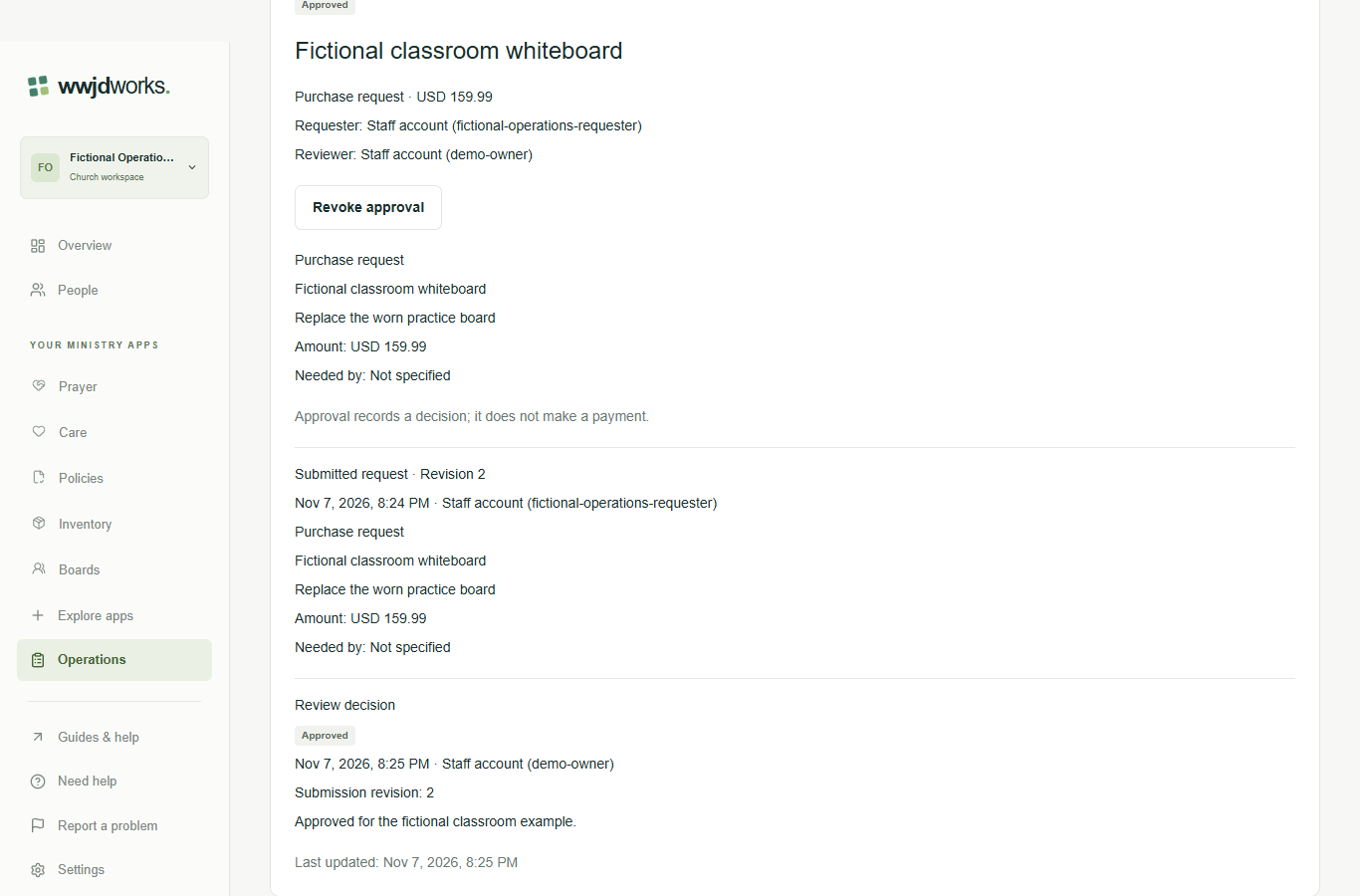
Withdraw or revoke with evidence
The requester or an authorized campus administrator can withdraw a draft, returned or submitted request with a reason. An authorized administrator other than the requester can revoke an approval with a reason. Revocation preserves the original approval and does not reverse purchases or other actions outside the app. Rejected, withdrawn and revoked requests are terminal; corrections require a new request and fresh review. History shows oldest changes first and retains reasons, decision notes and visible actors. Review all relevant pages; a partial list cannot prove a record is absent.
Recover without repeating uncertain saves
Copy unsaved text before leaving or changing campus; drafts are not stored in your browser. Validation keeps editable input. If the record changed, reload its saved state and review again. If creation could not be confirmed, inspect saved tasks or requests and their pages before creating another. If a decision response is lost, refresh to see whether it saved; do not repeat automatically. Access loss clears private details. Sign in or ask your administrator when necessary; never use another campus or account to bypass a denial. Keep sensitive pastoral narratives and bank details out of tasks and requests.
If something looks different
Missing actions usually depend on your role, the record’s visibility or status, or whether the product is enabled. Ask your organization administrator before creating duplicate records or changing access.