Before you begin
Sign in to the correct organization and make sure this product is enabled. Creation and administration require the appropriate team role. Screens may differ with your language and permissions.
Choose one campus with current Operations staff access. Records stay at that campus. All permitted campuses does not combine records. Archived campuses are read-only; requests have narrower visibility than team tasks.
Church owners and administrators add physical, online, or temporary campuses in Settings → Campuses. In Team & permissions, open Campus & product permissions to set each person’s campus, role, and products. A campus administrator manages records; church settings remain with church administrators and owners.
Choose the church and campus
Operations is available to authorized staff when selected for their church. Choose one campus with current Operations staff access. All permitted campuses asks you to choose a campus; it does not combine records. Archived campuses are read-only. Tasks are shared with authorized campus staff; requests are limited to the current requester, eligible assigned reviewer and campus Operations administrators.
Save and complete team tasks
In Tasks, choose New task. Add a title, description and optional due date. Choose an eligible existing staff account or deliberately leave the task unassigned. Assignment grants no access and sends no message. Save, then edit or start the task as needed. Complete requires an outcome; cancel and reopen require reasons. Review and confirm each transition. Reopening retains history and does not create a new assignment.
Prepare a purchase or budget draft
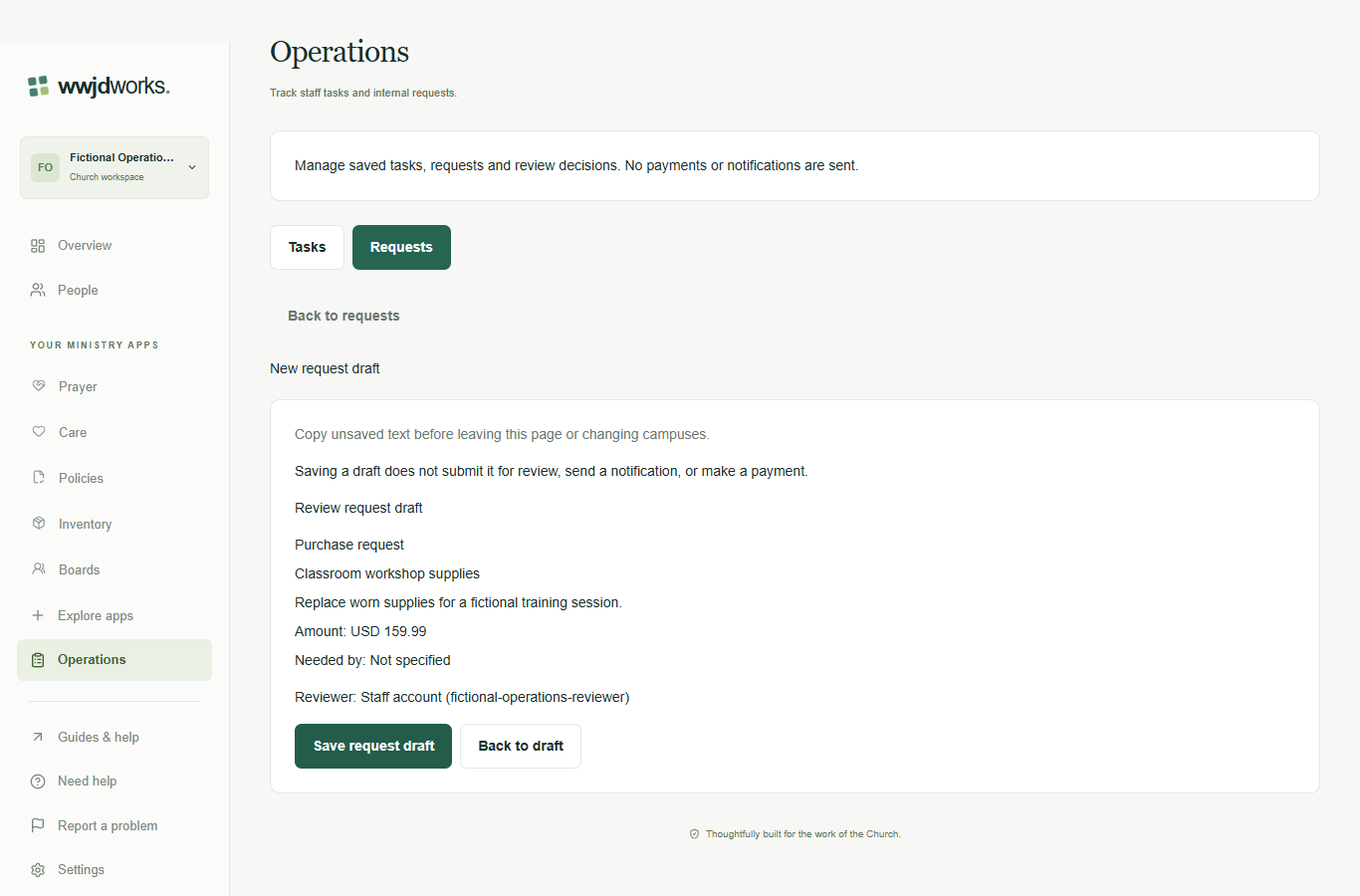
In Requests, choose New request draft. Select Purchase request or Budget request; type cannot change after saving. Add a title and justification. Choose USD, EUR or BRL explicitly; language does not choose the currency. English uses a decimal point, Spanish and Portuguese a comma. Use no grouping separators and at most two decimal places: 159.99 or 159,99. Positive amounts range from 0.01 to 9999999.99 currency units. The original entry convention stays fixed while the draft is open, even if you change language. Follow the displayed hint.
Review and save the draft
Choose a currently eligible reviewer or select one later. Choices show account IDs, not verified names or emails; ask your administrator about an unfamiliar ID. A draft may omit amount, dates, justification and reviewer, but requires a title and currency. Budget end cannot precede start. Review the displayed details before Save request draft. Saving does not submit, notify or pay. Only the requester can edit a draft or returned request. Replace or explicitly remove an unavailable reviewer before saving.
Submit complete details for review
Submission requires a justification, positive amount, both dates for a budget and an eligible administrator or owner reviewer other than the requester. The purchase needed-by date is optional. Choose Submit request, review the exact currency and amount, then confirm. The saved submission fixes the reviewed content and revision. No one, including an owner, can approve, reject, return or revoke their own request. A church with only one eligible administrator can keep drafts but needs another eligible reviewer for that administrator’s requests; do not create accounts or change access just to follow this guide.
Watch tutorial — Operations
Record a task and submit a request
Silent walkthrough with captions in English, Spanish, and Brazilian Portuguese. The example workspace is fictional.
Written walkthrough and transcript
- Choose the church and campus
Operations is available to authorized staff when selected for their church. Choose one campus with current Operations staff access. All permitted campuses asks you to choose a campus; it does not combine records. Archived campuses are read-only. Tasks are shared with authorized campus staff; requests are limited to the current requester, eligible assigned reviewer and campus Operations administrators.
- Save and complete team tasks
In Tasks, choose New task. Add a title, description and optional due date. Choose an eligible existing staff account or deliberately leave the task unassigned. Assignment grants no access and sends no message. Save, then edit or start the task as needed. Complete requires an outcome; cancel and reopen require reasons. Review and confirm each transition. Reopening retains history and does not create a new assignment.
- Prepare a purchase or budget draft
In Requests, choose New request draft. Select Purchase request or Budget request; type cannot change after saving. Add a title and justification. Choose USD, EUR or BRL explicitly; language does not choose the currency. English uses a decimal point, Spanish and Portuguese a comma. Use no grouping separators and at most two decimal places: 159.99 or 159,99. Positive amounts range from 0.01 to 9999999.99 currency units. The original entry convention stays fixed while the draft is open, even if you change language. Follow the displayed hint.
- Review and save the draft
Choose a currently eligible reviewer or select one later. Choices show account IDs, not verified names or emails; ask your administrator about an unfamiliar ID. A draft may omit amount, dates, justification and reviewer, but requires a title and currency. Budget end cannot precede start. Review the displayed details before Save request draft. Saving does not submit, notify or pay. Only the requester can edit a draft or returned request. Replace or explicitly remove an unavailable reviewer before saving.
- Submit complete details for review
Submission requires a justification, positive amount, both dates for a budget and an eligible administrator or owner reviewer other than the requester. The purchase needed-by date is optional. Choose Submit request, review the exact currency and amount, then confirm. The saved submission fixes the reviewed content and revision. No one, including an owner, can approve, reject, return or revoke their own request. A church with only one eligible administrator can keep drafts but needs another eligible reviewer for that administrator’s requests; do not create accounts or change access just to follow this guide.
If something looks different
Missing actions usually depend on your role, the record’s visibility or status, or whether the product is enabled. Ask your organization administrator before creating duplicate records or changing access.