Before you begin
Sign in to the correct organization and make sure this product is enabled. Creation and administration require the appropriate team role. Screens may differ with your language and permissions.
Choose the correct campus before creating a journey. The selected person and follow-up owner must have access to that campus. Person and campus changes are not available in the current edit form.
Church owners and administrators add physical, online, or temporary campuses in Settings → Campuses. In Team & permissions, open Campus & product permissions to set each person’s campus, role, and products. A campus administrator manages records; church settings remain with church administrators and owners.
Open Guests in the right church
Choose your church and campus, then open Guests. Use Add guest journey. Each church keeps its own records, even when several churches share a company.
Link the person and plan a next step
Enter a short journey title. Select an existing person associated with the campus; use the People link first if they are missing. Choose a follow-up owner, date and privacy. The owner must already have access to both Guests and that person. Record only the notes the team needs.
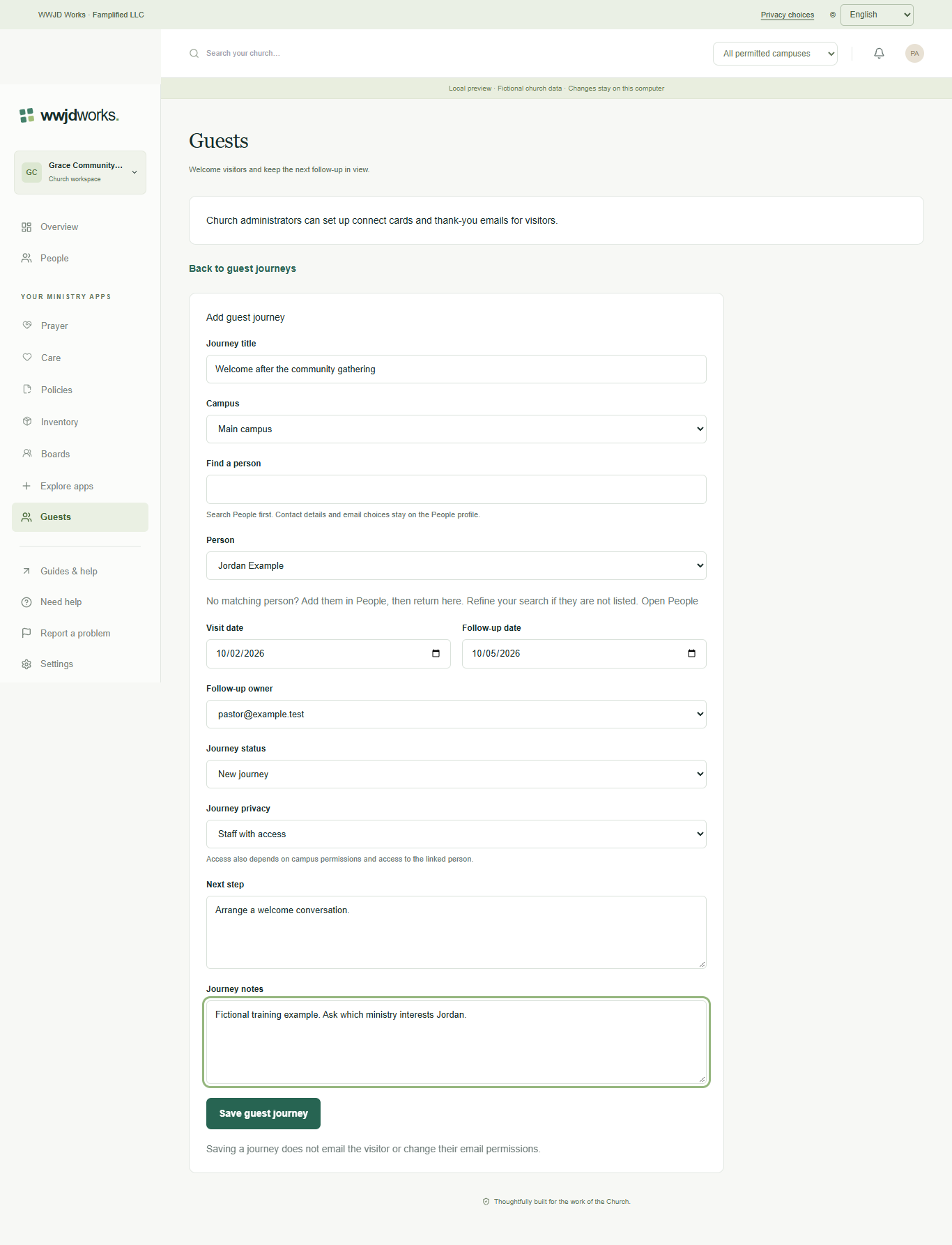
Save and review the journey
Select Save guest journey. Review the saved person, campus, owner and follow-up date. The person and campus cannot be changed in this edit form. Saving never changes the visitor’s email permissions or sends them a welcome message. Staff assignment notices are separate.
Watch tutorial — Guests
Create a visitor follow-up journey
Silent walkthrough with captions in English, Spanish, and Brazilian Portuguese. The example workspace is fictional.
Written walkthrough and transcript
- Open Guests in the right church
Choose your church and campus, then open Guests. Use Add guest journey. Each church keeps its own records, even when several churches share a company.
- Link the person and plan a next step
Enter a short journey title. Select an existing person associated with the campus; use the People link first if they are missing. Choose a follow-up owner, date and privacy. The owner must already have access to both Guests and that person. Record only the notes the team needs.
- Save and review the journey
Select Save guest journey. Review the saved person, campus, owner and follow-up date. The person and campus cannot be changed in this edit form. Saving never changes the visitor’s email permissions or sends them a welcome message. Staff assignment notices are separate.
If something looks different
Missing actions usually depend on your role, the record’s visibility or status, or whether the product is enabled. Ask your organization administrator before creating duplicate records or changing access.