Before you begin
Sign in to the correct organization and make sure this product is enabled. Creation and administration require the appropriate team role. Screens may differ with your language and permissions.
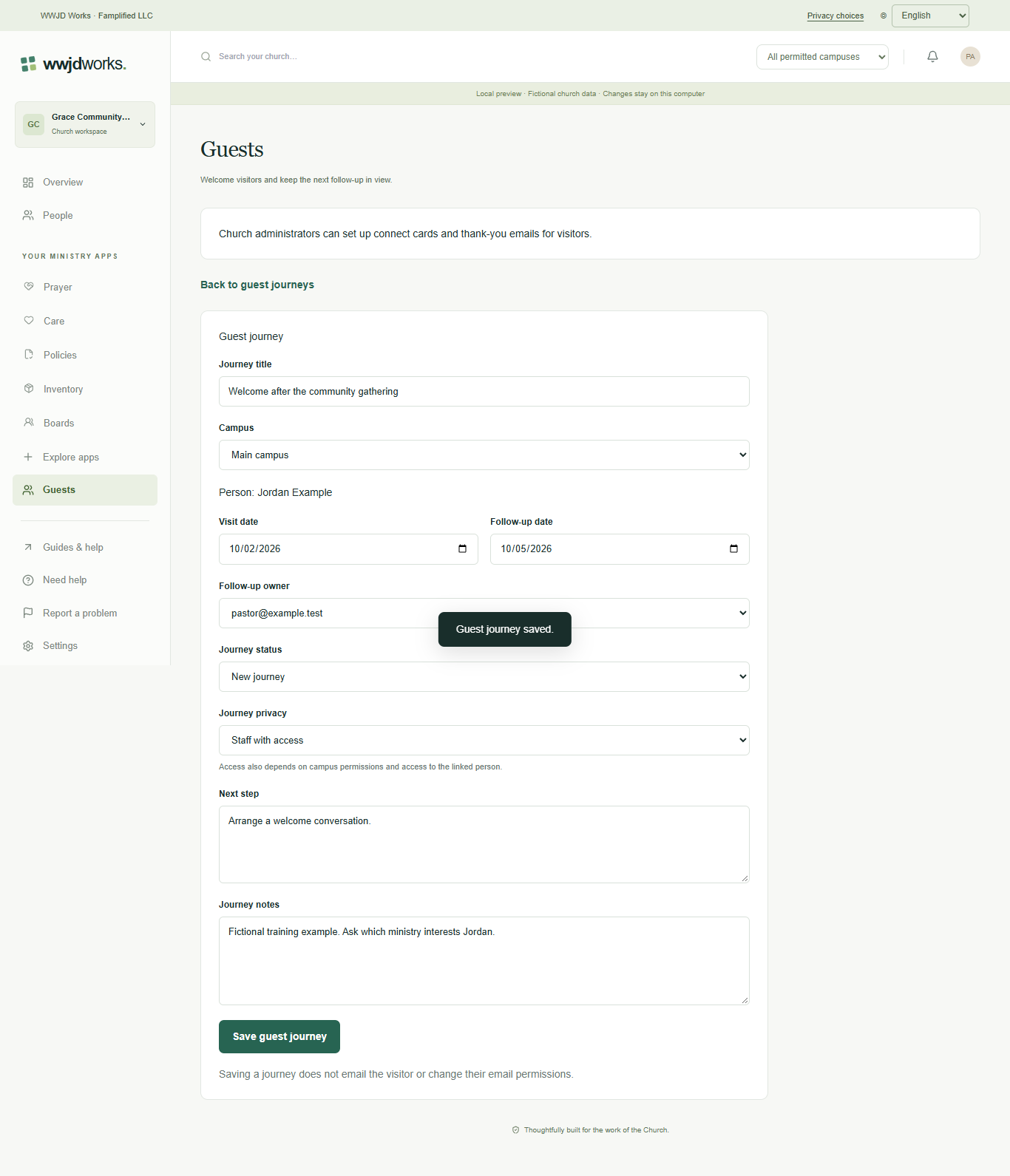
Choose the correct campus before creating a journey. The selected person and follow-up owner must have access to that campus. Person and campus changes are not available in the current edit form.
Church owners and administrators add physical, online, or temporary campuses in Settings → Campuses. In Team & permissions, open Campus & product permissions to set each person’s campus, role, and products. A campus administrator manages records; church settings remain with church administrators and owners.
Focus on the work you can access
Choose a campus, then combine title search, status, Assigned to me and Due follow-ups only. Due means today or earlier in the church’s time zone and excludes closed journeys. Missing journeys may reflect lost People access or a changed campus affiliation; ask an administrator rather than creating a duplicate.
Record progress and close completed work
Update the status, next step and follow-up date, then save. Assigned volunteers with separate People access can update only these fields. Choose Closed when finished; use Reopen guest journey to resume. If a save conflicts, copy your draft before explicitly discarding edits and reloading.
Use notices and downloads with care
Staff notices link to the current authorized journey. Changing its revision or access can remove an old notice. When a follow-up is due, the assigned staff member gets an in-app reminder under the bell. CSV and JSON include all matching journeys, not just the current page, and include private notes. Share files only with authorized people. Visitors can send connect cards from your campus links; your church can turn on a thank-you email for card senders in Settings, Email.
If something looks different
Missing actions usually depend on your role, the record’s visibility or status, or whether the product is enabled. Ask your organization administrator before creating duplicate records or changing access.