Before you begin
Sign in to the correct organization and make sure this product is enabled. Creation and administration require the appropriate team role. Screens may differ with your language and permissions.
Choose a specific campus with current Facilities staff access. A work order stays at that campus; All permitted campuses does not combine orders. Optional People and Inventory links require separate current access.
Church owners and administrators add physical, online, or temporary campuses in Settings → Campuses. In Team & permissions, open Campus & product permissions to set each person’s campus, role, and products. A campus administrator manages records; church settings remain with church administrators and owners.
Choose the church and campus
Facilities is available to authorized staff when selected for their church. Open Facilities in the correct church and choose a specific campus in the shared workspace. Staff need current Facilities access for that campus. All permitted campuses asks you to choose one; it does not combine work orders. For emergencies, follow your church’s emergency procedures rather than relying on this request queue.
Describe and create the request
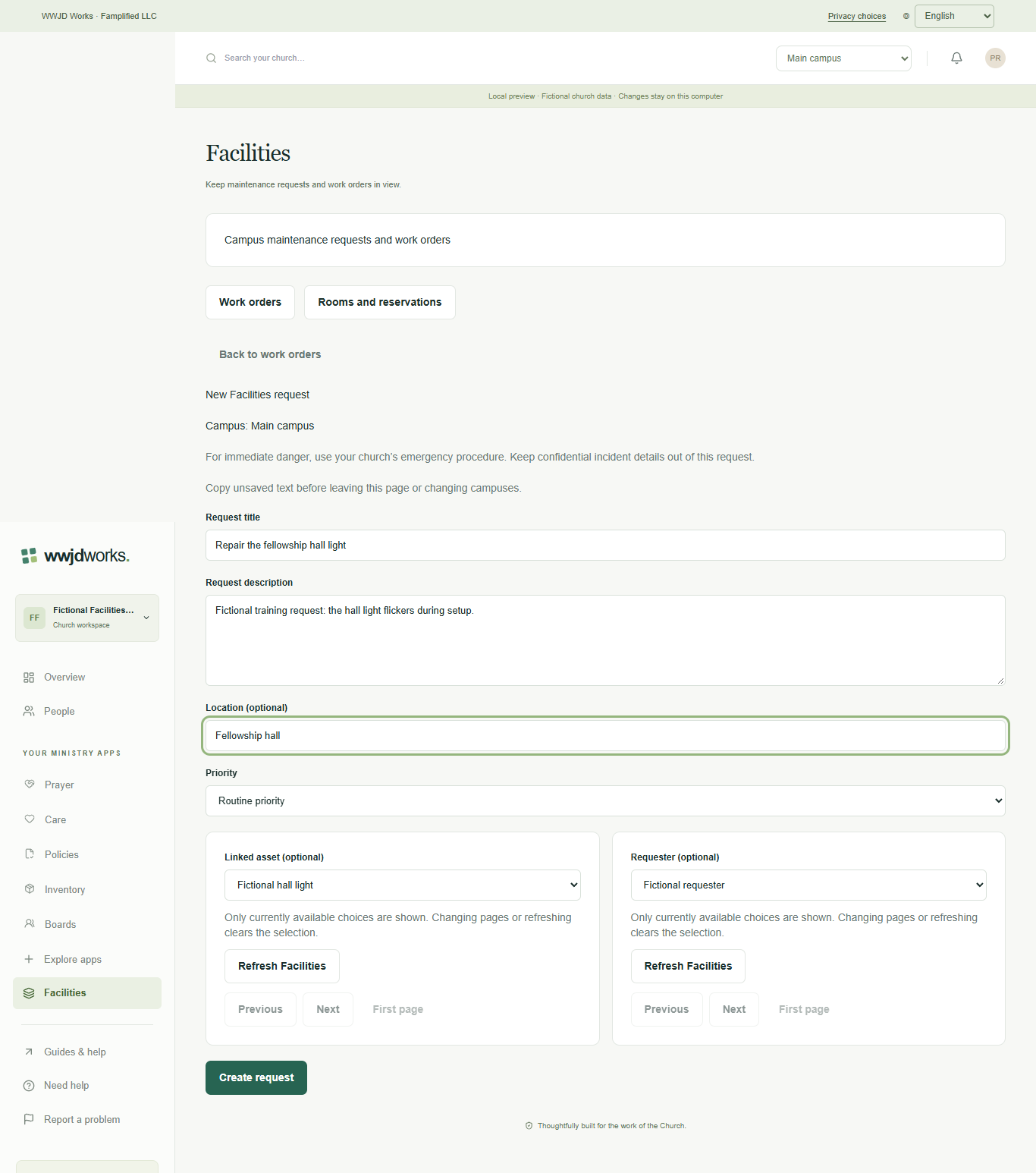
Choose New Facilities request. Enter a clear title and description, select the priority and optionally add a location. You may link an eligible asset or requester; neither link is required. Create request saves a new work order and opens its current details. The campus stays fixed. Edit request details can correct unresolved, unarchived requests without changing work status.
Accept, start and record blockers
Open Update work status. Accept work requires eligible responsible staff and allows an optional target date, then moves the request to planned. Start work moves planned or blocked work to in progress. Mark work blocked requires a reason. Use Change responsible staff or Change target date while planned, in progress or blocked. Dates are calendar days; an empty date clears the target. Assignment sends no email and does not grant access.
Complete, cancel or reopen deliberately
Complete work is available while in progress and requires a resolution. Cancel work requires a reason and can close unresolved work. Completed or cancelled work can be reopened with a reason and eligible staff; its target date starts blank. Archive work keeps closed work and its history. Restore work removes the archive marker but does not reopen it. Read history in successive batches to see earlier decisions. On an archived campus, starting, accepting and reopening are unavailable; closure and history remain distinct.
Watch tutorial — Facilities
Take a maintenance request through resolution
Silent walkthrough with captions in English, Spanish, and Brazilian Portuguese. The example workspace is fictional.
Written walkthrough and transcript
- Choose the church and campus
Facilities is available to authorized staff when selected for their church. Open Facilities in the correct church and choose a specific campus in the shared workspace. Staff need current Facilities access for that campus. All permitted campuses asks you to choose one; it does not combine work orders. For emergencies, follow your church’s emergency procedures rather than relying on this request queue.
- Describe and create the request
Choose New Facilities request. Enter a clear title and description, select the priority and optionally add a location. You may link an eligible asset or requester; neither link is required. Create request saves a new work order and opens its current details. The campus stays fixed. Edit request details can correct unresolved, unarchived requests without changing work status.
- Accept, start and record blockers
Open Update work status. Accept work requires eligible responsible staff and allows an optional target date, then moves the request to planned. Start work moves planned or blocked work to in progress. Mark work blocked requires a reason. Use Change responsible staff or Change target date while planned, in progress or blocked. Dates are calendar days; an empty date clears the target. Assignment sends no email and does not grant access.
- Complete, cancel or reopen deliberately
Complete work is available while in progress and requires a resolution. Cancel work requires a reason and can close unresolved work. Completed or cancelled work can be reopened with a reason and eligible staff; its target date starts blank. Archive work keeps closed work and its history. Restore work removes the archive marker but does not reopen it. Read history in successive batches to see earlier decisions. On an archived campus, starting, accepting and reopening are unavailable; closure and history remain distinct.
If something looks different
Missing actions usually depend on your role, the record’s visibility or status, or whether the product is enabled. Ask your organization administrator before creating duplicate records or changing access.