Before you begin
Sign in to the correct organization and make sure this product is enabled. Creation and administration require the appropriate team role. Screens may differ with your language and permissions.
Choose a specific campus with current Facilities staff access. A work order stays at that campus; All permitted campuses does not combine orders. Optional People and Inventory links require separate current access.
Church owners and administrators add physical, online, or temporary campuses in Settings → Campuses. In Team & permissions, open Campus & product permissions to set each person’s campus, role, and products. A campus administrator manages records; church settings remain with church administrators and owners.
Select eligible staff and links
Staff choices use account IDs, not email addresses or verified display names. Confirm the account with your administrator if unsure. Staff must currently have Facilities access at the work order’s campus. Asset choices require Inventory access; requester choices require People access and an eligible active person at that campus. Choices arrive in bounded batches. Next may remain available on an empty page; First page recovers an expired page. Changing pages or refreshing clears the selection.
Keep, clear or replace links explicitly
In Edit request details, keep leaves a stored link unchanged even if it is unavailable to you now. Clear removes the link from this work order; replace requires a new authorized selection. These operations do not change or delete People or Inventory records. An unavailable link reveals no name or identifier. An unavailable assignee may need eligible reassignment before starting or completing work. Archived campuses allow descriptive corrections and clearing links, but not new links.
Review uncertain creation before trying again
If creation is interrupted, keep or copy the frozen draft and refresh the current work-order list. Review the relevant campus pages, including closed and archived work, and open a matching saved request instead of creating it again. An empty or partial page does not prove the request was not saved. Only prepare another submission after deliberate review; preparation does not submit. Drafts exist only in the current page and can be lost when you leave or reload.
Refresh and review changed work
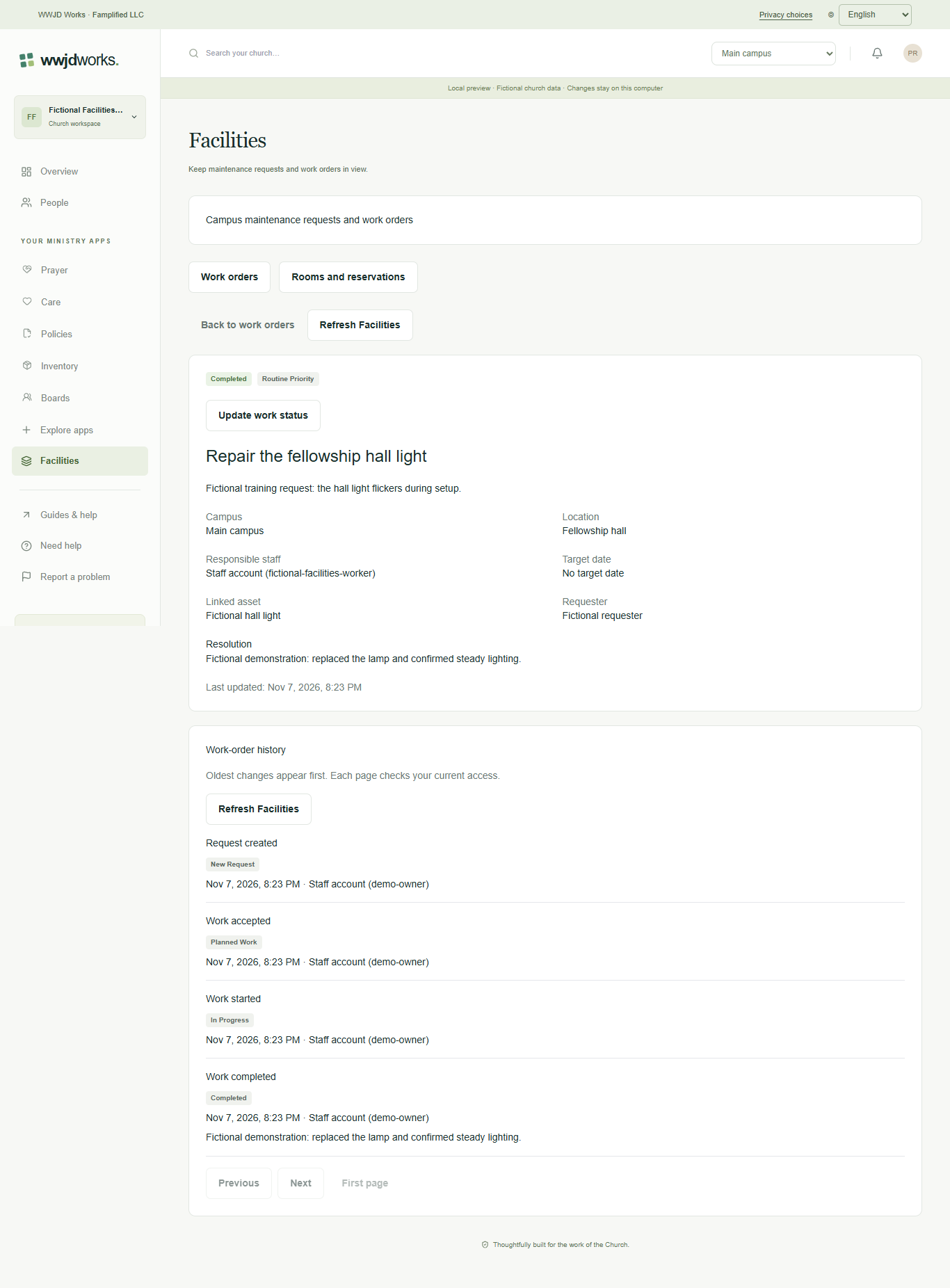
For an interrupted edit or status change, copy any important draft text and use the explicit current-record refresh. Review the saved status, staff and date before preparing a still-valid action again. Reselect staff when asked. If the change already took effect, do not repeat it. A saved change whose detail view failed needs a read refresh, not another save. No action retries automatically. If access or sign-in expires, displayed records are cleared while draft text remains copyable; use shared sign-in or contact your administrator.
If something looks different
Missing actions usually depend on your role, the record’s visibility or status, or whether the product is enabled. Ask your organization administrator before creating duplicate records or changing access.