Open Prayer
Sign in, choose the correct organization, and open Prayer in the sidebar. Select New prayer request. If Prayer is missing, ask an administrator to enable it in Explore apps.
WWJD Prayer · Part of WWJD Works
Keep each request connected to a person who will follow through.
Choose this and one other app free. No credit card needed.
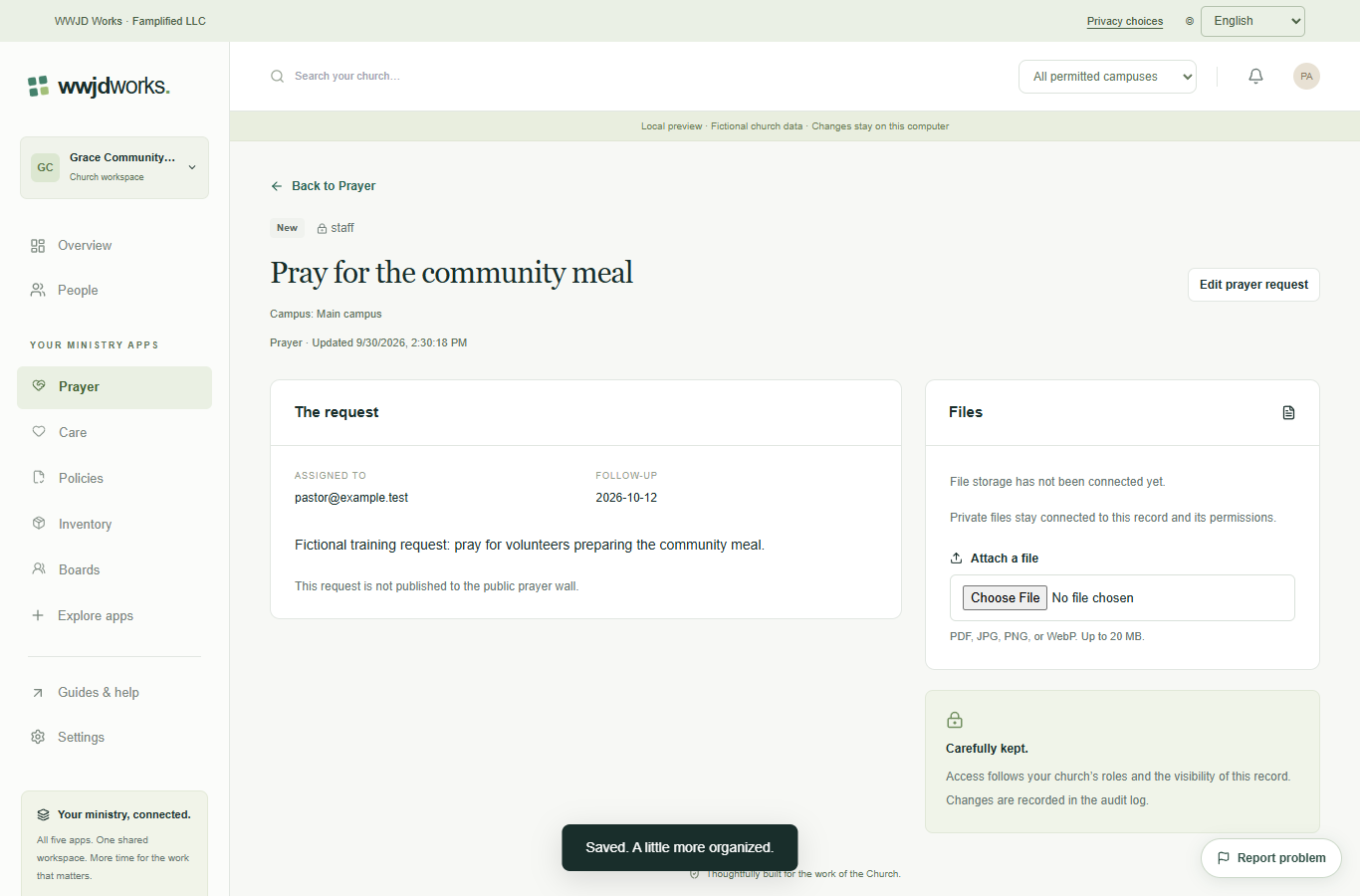
Sign in, choose the correct organization, and open Prayer in the sidebar. Select New prayer request. If Prayer is missing, ask an administrator to enable it in Explore apps.
Enter a short title and only the details your team needs. Choose an assigned team member and a follow-up date. Review Who can see this? Leave public sharing and publication unchecked for a private request.
Select Create prayer request, then open its title in the list. Use Edit prayer request to update the status as the team prays, records an answer, or archives the request. Follow-up dates appear on the overview.
Start a private request, choose its audience, and keep the next follow-up visible.
Read the guide Everyday workflowsEnable the public form and understand consent, staff review, and withdrawal.
Read the guideNo. Every product uses your WWJD Works account and the same organization workspace. Your team’s roles and permissions determine access.
Choose any two Standard products on the Free plan. Works includes all five current Standard products. Plans and limits apply per organization workspace. See simple pricing
Every product has a learning hub with step-by-step guides, actual screenshots, and a captioned video. The Guides & help link inside your workspace opens the relevant hub.
Enable the public form and understand consent, staff review, and withdrawal. Read the guide
These products share your WWJD Works login, organization, permissions, and plan. You can add another product without creating a separate account.
Start free