Every app, free for your first 12 months. No credit card needed.
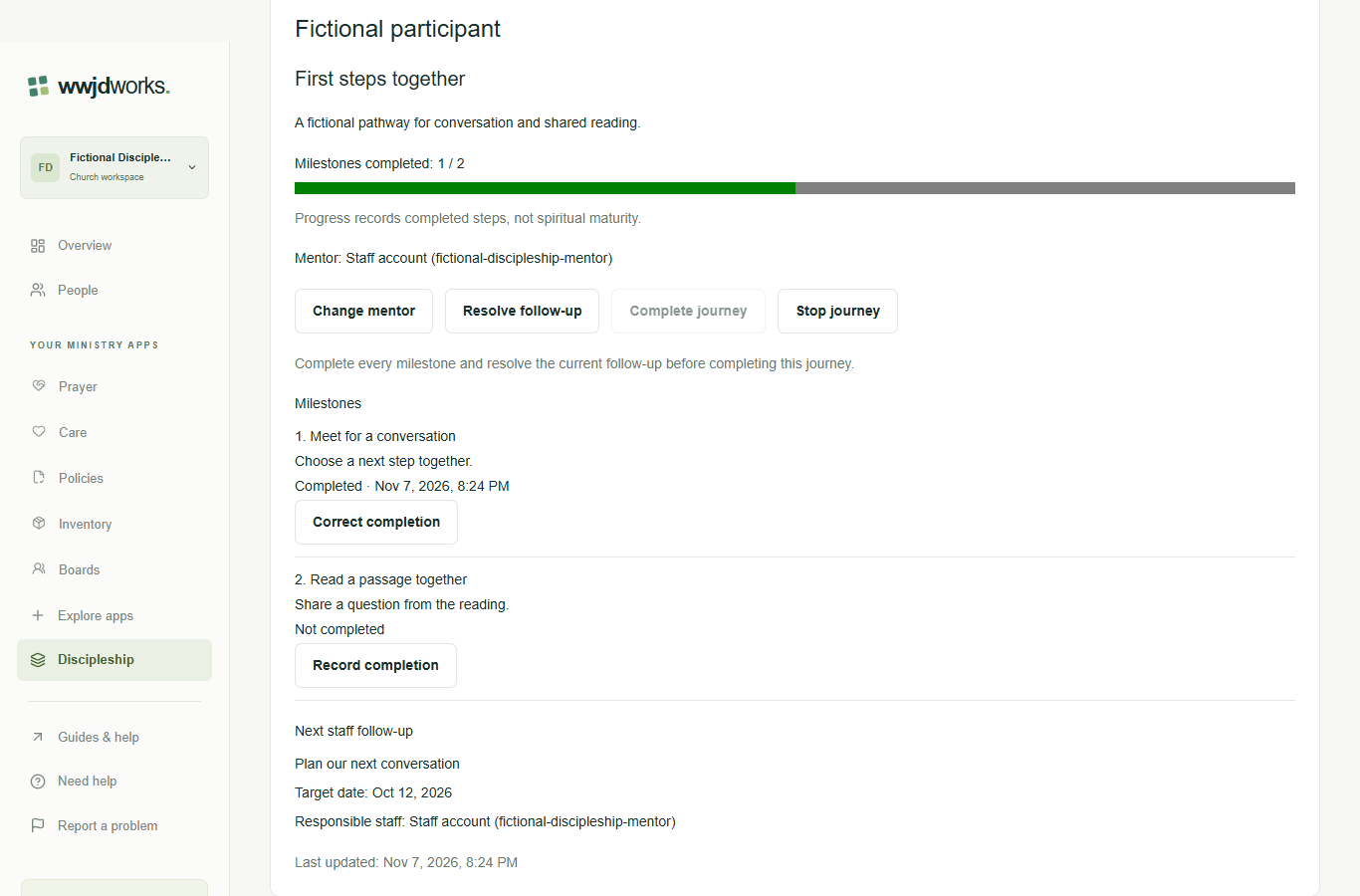
For discipleship leaders and church staffReview a record · English interface shown with fictional training data. Select the image to enlarge.
FROM FIRST STEP TO EVERYDAY WORK
See how it fits your team.
1
Choose the church and campus
Discipleship is available to authorized staff when selected for their church. Open Discipleship in the correct church and select one campus. All permitted campuses asks you to choose a campus; it does not combine journeys. Current staff access and People visibility are required. Archived campuses are read-only.
2
Draft and publish a pathway
In Pathways, choose New pathway. Add a title, a short description and one to thirty milestones. Save the draft, review its steps and publish it. Publication fixes titles, descriptions and order. Archive closes new enrollment while existing journeys remain; restore allows new enrollment without changing the content. Create a new pathway for revised content.
3
Enroll and review the snapshot
Open Participant journeys and choose Enroll participant. Select a visible active or guest People participant, an active pathway and an eligible mentor or no mentor. Review the choices before confirming. The journey keeps a copy of the published milestones. A participant can have only one journey for that pathway in the campus, including stopped journeys; reopen an existing journey instead of enrolling again.
4
Record steps and accountable follow-up
Record completion beside any milestone, in any order. Correct completion requires a reason kept in history. Progress describes recorded steps, not spiritual maturity. Schedule follow-up selects an eligible staff owner, a short action title and a real due date. Past dates are allowed for existing work. Only one task can be current; resolve it with an outcome before scheduling another. No message or reminder is sent.
5
Complete, stop or reopen with a reason
Complete journey becomes available after all milestones are recorded and the current follow-up is resolved. Stop journey requires a reason, retains progress and records any cancelled task in history. Reopen journey requires a reason and keeps the milestone evidence, but does not restore a cancelled follow-up. Reopen a completed journey before correcting a milestone.
No. Every product uses your WWJD Works account and the same organization workspace. Your team’s roles and permissions determine access.
Can we start with this product for free?
Yes. Founding churches get every available product free for their first 12 months. Plans and limits apply per organization workspace. See simple pricing
Where can our team find instructions?
Every product has a learning hub with step-by-step guides, actual screenshots, and a captioned video. The Guides & help link inside your workspace opens the relevant hub.
Manage mentors, history and interrupted saves
Keep assignments accountable and inspect saved evidence before repeating a change. Read the guide
One account. A connected toolkit.
These products share your WWJD Works login, organization, permissions, and plan. You can add another product without creating a separate account.