Before you begin
Sign in to the correct organization and make sure this product is enabled. Creation and administration require the appropriate team role. Screens may differ with your language and permissions.
For a church with multiple locations, choose a campus in the top bar before creating a record. All permitted campuses combines only records you can access. Check the Campus field before saving; changing it transfers that record and requires access to both campuses. Policies and boards can also be church-wide.
Church owners and administrators add physical, online, or temporary campuses in Settings → Campuses. In Team & permissions, open Campus & product permissions to set each person’s campus, role, and products. A campus administrator manages records; church settings remain with church administrators and owners.
Enable the intake form
An owner or administrator opens Settings → Organization, enables the public prayer form and moderated wall, and saves settings. Use Open your prayer form to copy the correct organization link.
Review before publishing
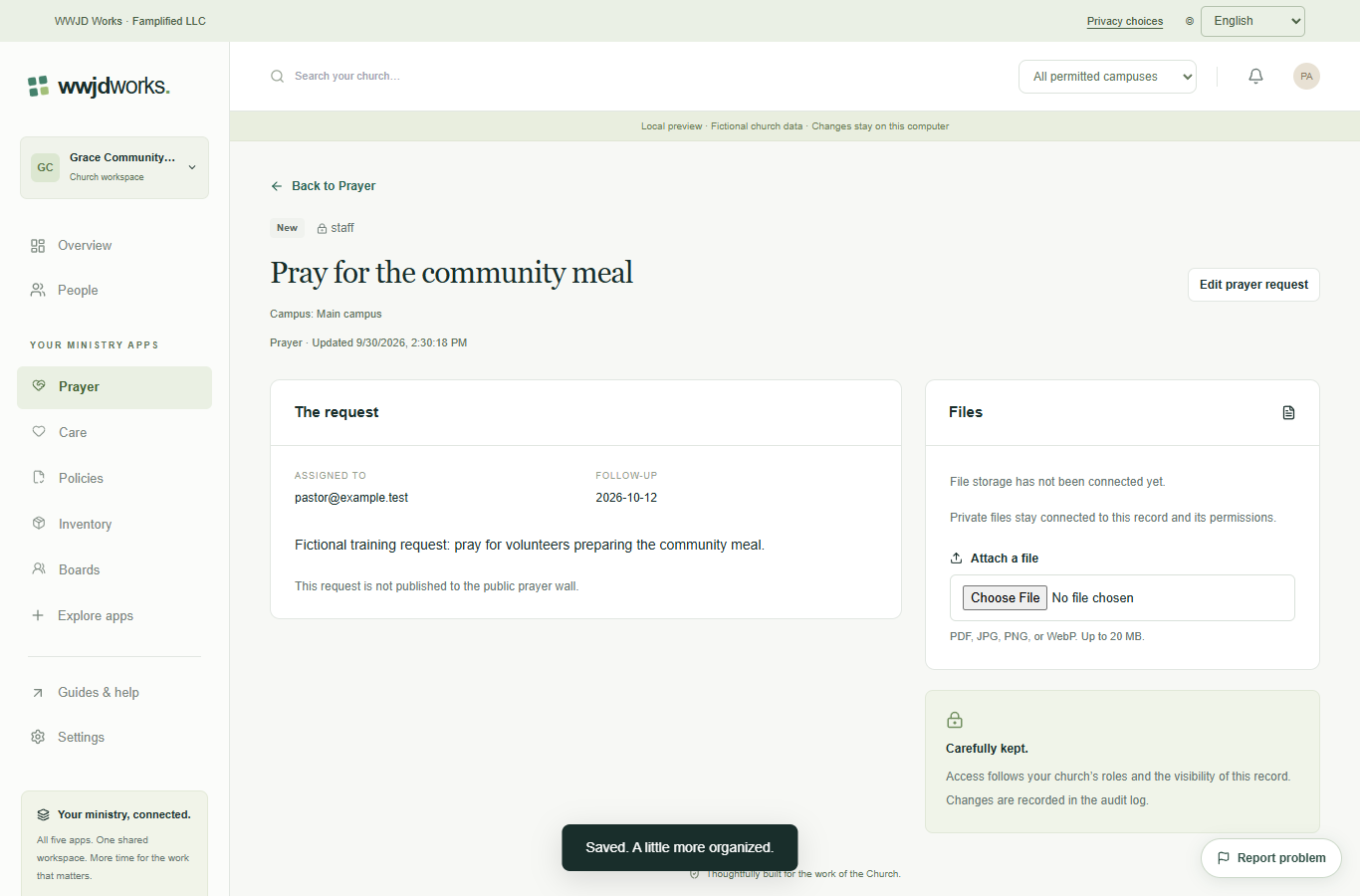
Public submissions start staff-only and unpublished. Check the request and its permission for public sharing. An owner or administrator must select public visibility and approve publication. Consent alone never publishes a request automatically.
Respect withdrawal and privacy
The submitter receives a private withdrawal link. Withdrawal removes the public listing and clears the active request text; it blocks republication. Broader deletion of notes, files, and backups requires a privacy request. Never publish another person’s sensitive details without authority.
If something looks different
Missing actions usually depend on your role, the record’s visibility or status, or whether the product is enabled. Ask your organization administrator before creating duplicate records or changing access.