Before you begin
Sign in to the correct organization and make sure this product is enabled. Creation and administration require the appropriate team role. Screens may differ with your language and permissions.
For a church with multiple locations, choose a campus in the top bar before creating a record. All permitted campuses combines only records you can access. Check the Campus field before saving; changing it transfers that record and requires access to both campuses. Policies and boards can also be church-wide.
Church owners and administrators add physical, online, or temporary campuses in Settings → Campuses. In Team & permissions, open Campus & product permissions to set each person’s campus, role, and products. A campus administrator manages records; church settings remain with church administrators and owners.
Publish the reviewed version
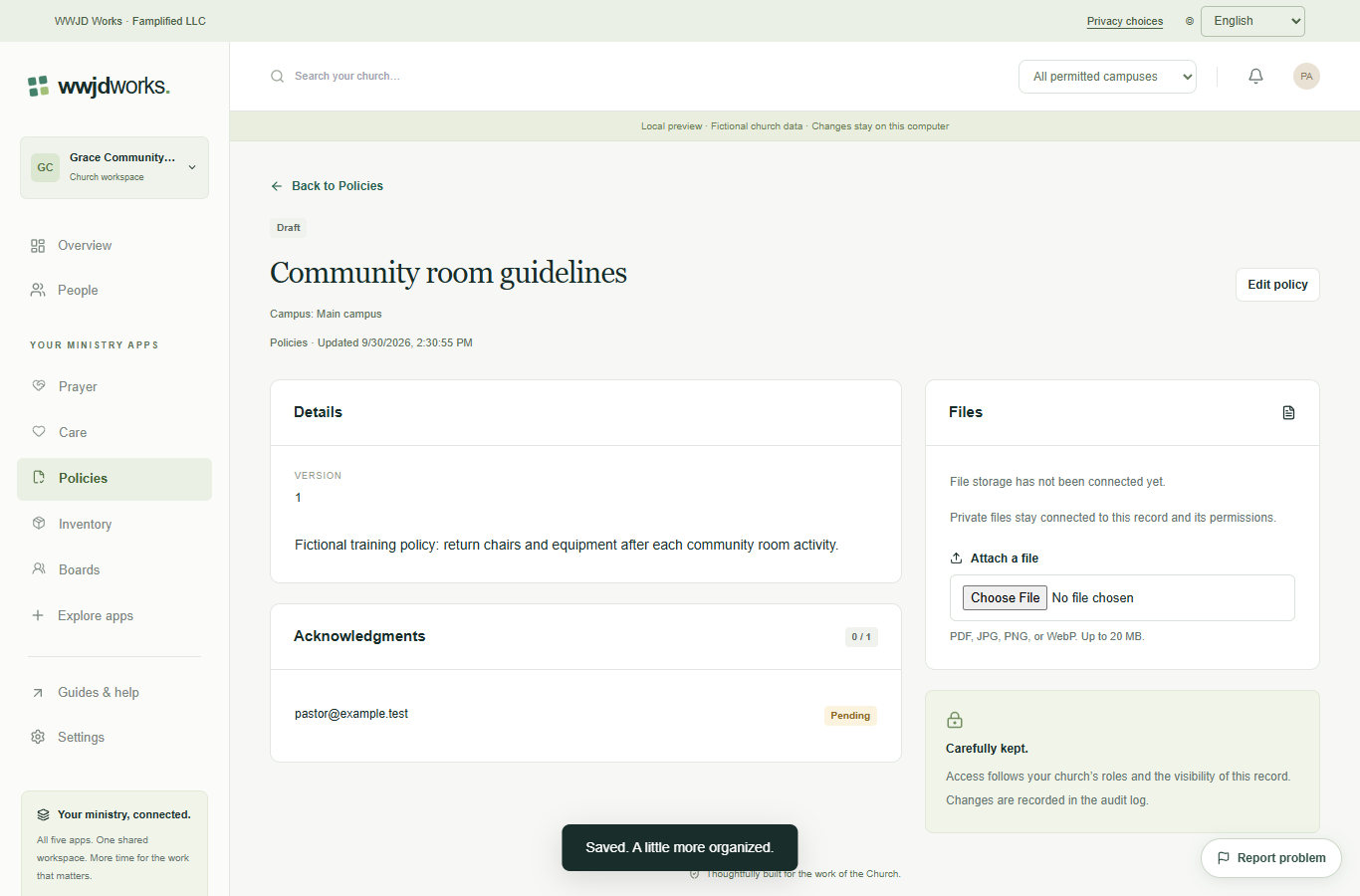
Open the draft and choose Edit policy. When the text, document, and assignments are ready, change Status to published and save. Published wording and its document are fixed; review them before this step.
Record individual acknowledgments
Assigned team members sign in, open the policy, read its contents, check the acknowledgment statement, and choose Record my acknowledgment. Administrators can review completion and use Remind pending members. Email delivery requires the configured mail service.
Create a new version for changes
Use Create next version when the policy wording changes. The new draft is a separate version with no inherited acknowledgments. Review, assign, and publish it so readers acknowledge the revised text themselves.
If something looks different
Missing actions usually depend on your role, the record’s visibility or status, or whether the product is enabled. Ask your organization administrator before creating duplicate records or changing access.