Before you begin
Sign in to the correct organization and make sure this product is enabled. Creation and administration require the appropriate team role. Screens may differ with your language and permissions.
Choose a specific campus with current Discipleship staff access and People visibility. Participant and campus stay fixed. All permitted campuses does not combine journeys. Archived campuses are read-only.
Church owners and administrators add physical, online, or temporary campuses in Settings → Campuses. In Team & permissions, open Campus & product permissions to set each person’s campus, role, and products. A campus administrator manages records; church settings remain with church administrators and owners.
Choose currently eligible accounts
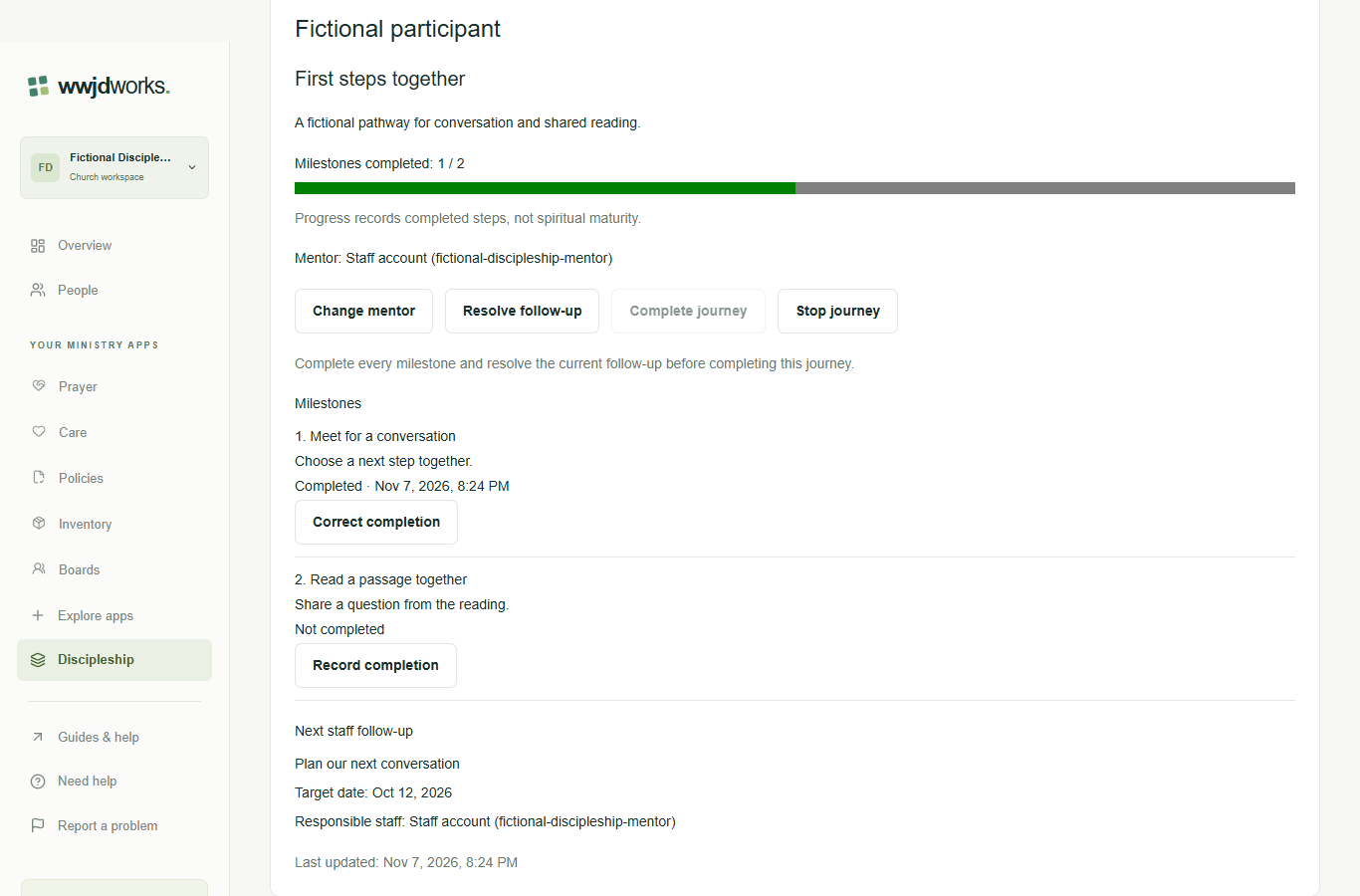
Mentors and follow-up owners are existing staff accounts with current access to the campus and participant. Assignment does not create an account, grant access or authorize contact. Choices show permitted account IDs, not verified names or email addresses; confirm an unfamiliar account with your administrator. Change mentor can replace or remove an assignment, including an unavailable former mentor.
Read every relevant page
Lists and choices arrive in bounded pages. An empty page may still have Next when inaccessible records were filtered out. Use First page when a continuation expires. History shows oldest changes first, with reasons, outcomes and currently visible staff. An unavailable account is hidden; assignment never overrides access. Keep task titles and outcomes brief and avoid sensitive counseling narratives.
Review uncertain creation
If creation or enrollment cannot be confirmed, review the saved pathways or journeys before trying again. Search the relevant campus and pages and open any matching record. A partial or empty page does not prove nothing was saved. Do not repeatedly confirm enrollment or create a replacement pathway to work around the uncertainty.
Refresh before repeating an update
A conflict or uncertain journey update clears the stale detail and history. Refresh Discipleship, inspect the saved state and history, then prepare only an action that is still needed. Nothing replays automatically. Validation errors allow correction. Access or session loss clears private input; use the shared sign-in recovery or contact an administrator. Copy text you need before changing campus or leaving an editor; private drafts are not saved in browser storage.
If something looks different
Missing actions usually depend on your role, the record’s visibility or status, or whether the product is enabled. Ask your organization administrator before creating duplicate records or changing access.