Before you begin
Sign in to the correct organization and make sure this product is enabled. Creation and administration require the appropriate team role. Screens may differ with your language and permissions.
Choose a specific campus with current Discipleship staff access and People visibility. Participant and campus stay fixed. All permitted campuses does not combine journeys. Archived campuses are read-only.
Church owners and administrators add physical, online, or temporary campuses in Settings → Campuses. In Team & permissions, open Campus & product permissions to set each person’s campus, role, and products. A campus administrator manages records; church settings remain with church administrators and owners.
Choose the church and campus
Discipleship is available to authorized staff when selected for their church. Open Discipleship in the correct church and select one campus. All permitted campuses asks you to choose a campus; it does not combine journeys. Current staff access and People visibility are required. Archived campuses are read-only.
Draft and publish a pathway
In Pathways, choose New pathway. Add a title, a short description and one to thirty milestones. Save the draft, review its steps and publish it. Publication fixes titles, descriptions and order. Archive closes new enrollment while existing journeys remain; restore allows new enrollment without changing the content. Create a new pathway for revised content.
Enroll and review the snapshot
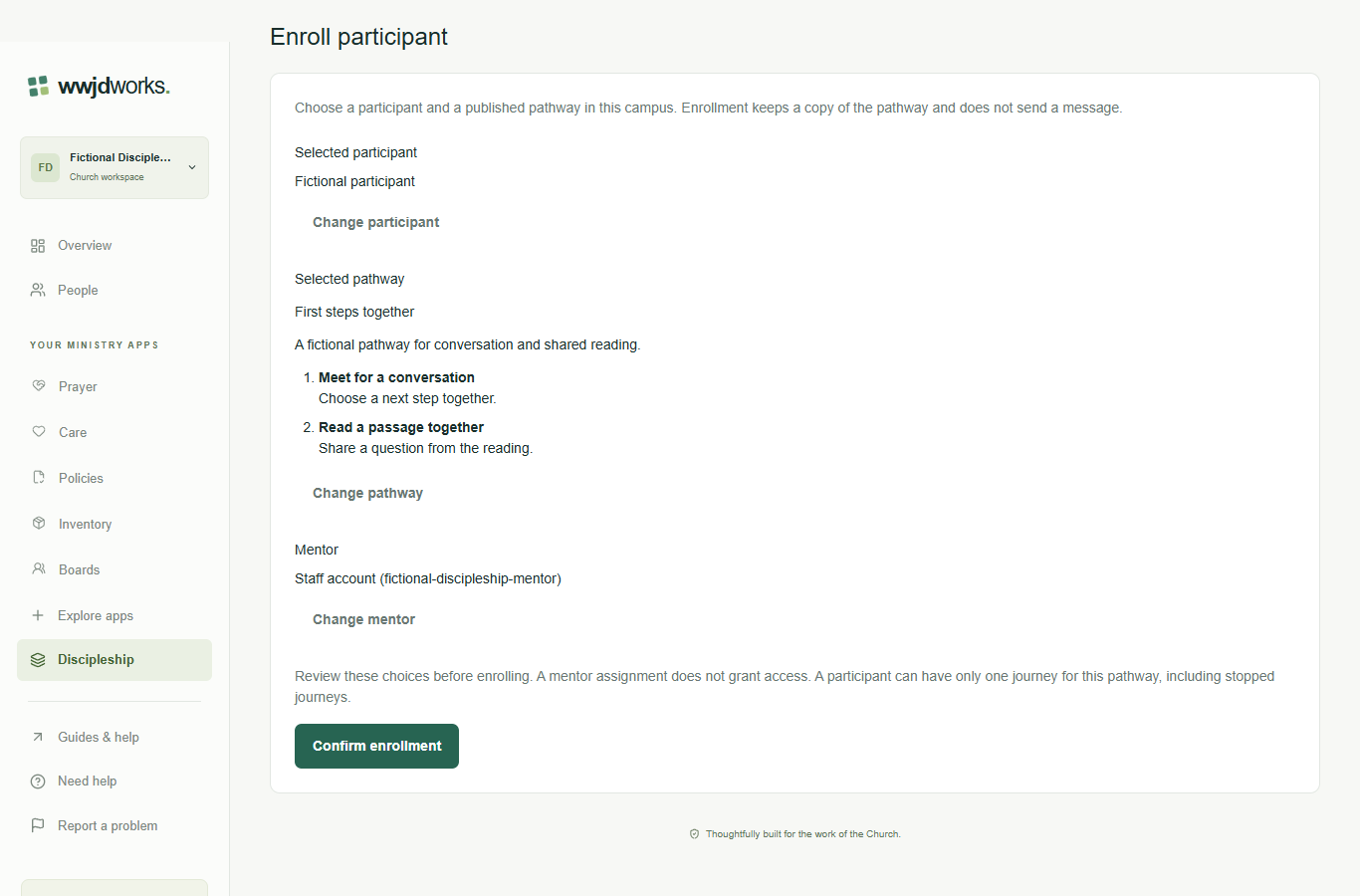
Open Participant journeys and choose Enroll participant. Select a visible active or guest People participant, an active pathway and an eligible mentor or no mentor. Review the choices before confirming. The journey keeps a copy of the published milestones. A participant can have only one journey for that pathway in the campus, including stopped journeys; reopen an existing journey instead of enrolling again.
Record steps and accountable follow-up
Record completion beside any milestone, in any order. Correct completion requires a reason kept in history. Progress describes recorded steps, not spiritual maturity. Schedule follow-up selects an eligible staff owner, a short action title and a real due date. Past dates are allowed for existing work. Only one task can be current; resolve it with an outcome before scheduling another. No message or reminder is sent.
Complete, stop or reopen with a reason
Complete journey becomes available after all milestones are recorded and the current follow-up is resolved. Stop journey requires a reason, retains progress and records any cancelled task in history. Reopen journey requires a reason and keeps the milestone evidence, but does not restore a cancelled follow-up. Reopen a completed journey before correcting a milestone.
Watch tutorial — Discipleship
Build a pathway and begin a participant journey
Silent walkthrough with captions in English, Spanish, and Brazilian Portuguese. The example workspace is fictional.
Written walkthrough and transcript
- Choose the church and campus
Discipleship is available to authorized staff when selected for their church. Open Discipleship in the correct church and select one campus. All permitted campuses asks you to choose a campus; it does not combine journeys. Current staff access and People visibility are required. Archived campuses are read-only.
- Draft and publish a pathway
In Pathways, choose New pathway. Add a title, a short description and one to thirty milestones. Save the draft, review its steps and publish it. Publication fixes titles, descriptions and order. Archive closes new enrollment while existing journeys remain; restore allows new enrollment without changing the content. Create a new pathway for revised content.
- Enroll and review the snapshot
Open Participant journeys and choose Enroll participant. Select a visible active or guest People participant, an active pathway and an eligible mentor or no mentor. Review the choices before confirming. The journey keeps a copy of the published milestones. A participant can have only one journey for that pathway in the campus, including stopped journeys; reopen an existing journey instead of enrolling again.
- Record steps and accountable follow-up
Record completion beside any milestone, in any order. Correct completion requires a reason kept in history. Progress describes recorded steps, not spiritual maturity. Schedule follow-up selects an eligible staff owner, a short action title and a real due date. Past dates are allowed for existing work. Only one task can be current; resolve it with an outcome before scheduling another. No message or reminder is sent.
- Complete, stop or reopen with a reason
Complete journey becomes available after all milestones are recorded and the current follow-up is resolved. Stop journey requires a reason, retains progress and records any cancelled task in history. Reopen journey requires a reason and keeps the milestone evidence, but does not restore a cancelled follow-up. Reopen a completed journey before correcting a milestone.
If something looks different
Missing actions usually depend on your role, the record’s visibility or status, or whether the product is enabled. Ask your organization administrator before creating duplicate records or changing access.