Before you begin
Sign in to the correct organization and make sure this product is enabled. Creation and administration require the appropriate team role. Screens may differ with your language and permissions.
For a church with multiple locations, choose a campus in the top bar before creating a record. All permitted campuses combines only records you can access. Check the Campus field before saving; changing it transfers that record and requires access to both campuses. Policies and boards can also be church-wide.
Church owners and administrators add physical, online, or temporary campuses in Settings → Campuses. In Team & permissions, open Campus & product permissions to set each person’s campus, role, and products. A campus administrator manages records; church settings remain with church administrators and owners.
Record a clear motion
Open a scheduled meeting. In Motions & votes, enter the complete proposal under New motion and select Record motion. Make the wording clear enough for members to understand what yes, no, or abstain means.
Have members record their own votes
Each listed meeting member signs in and chooses yes, no, or abstain on the motion. A member can record one vote per motion. The current tool records counts; it does not determine quorum, legal validity, or your organization’s parliamentary rules.
Assign the next action
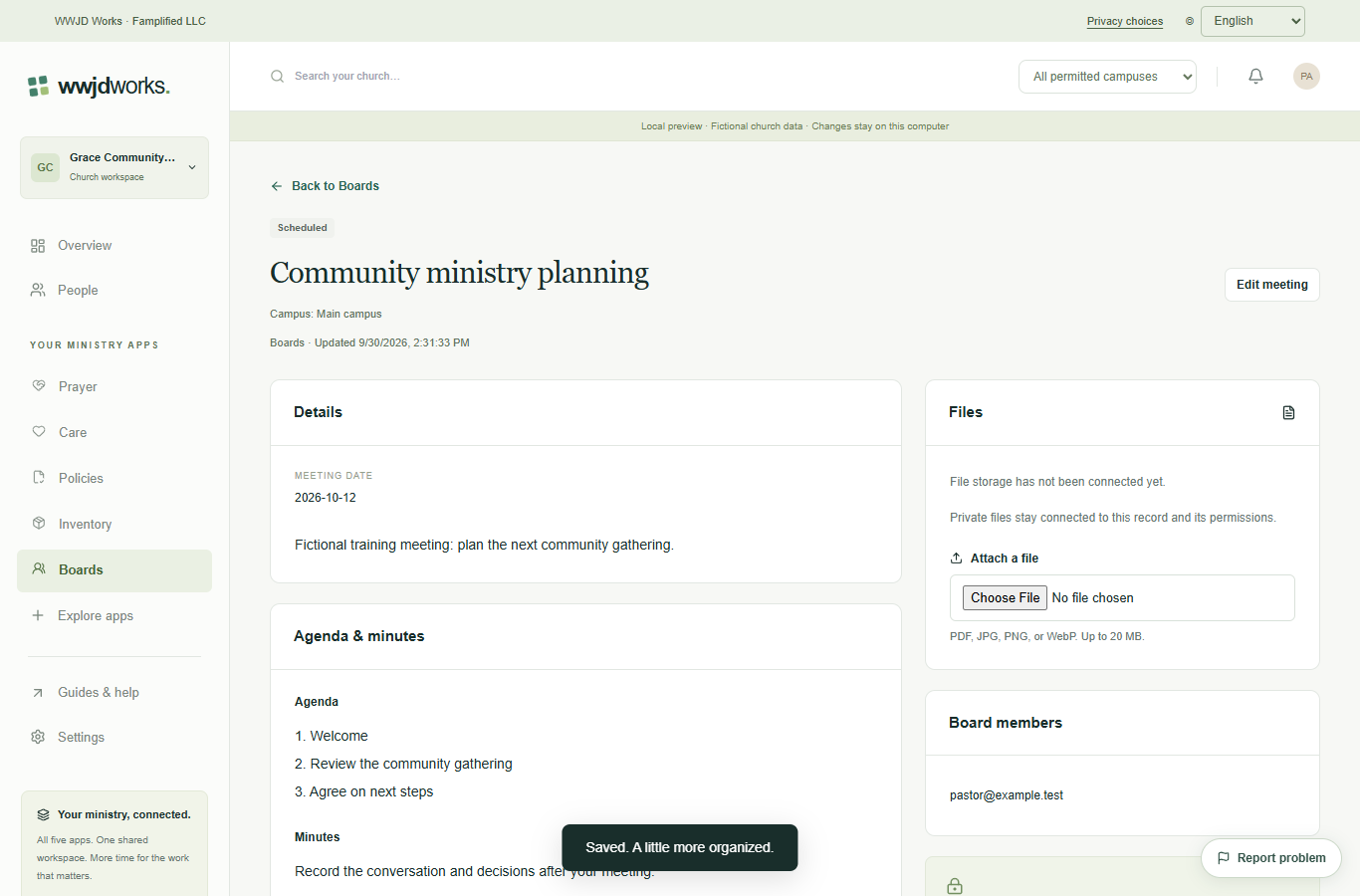
Under Follow-up tasks, enter the next step, choose an assignee and due date, and select Add task. Mark tasks done as they are completed. Use Edit meeting to update minutes or close the meeting when your review is complete.
If something looks different
Missing actions usually depend on your role, the record’s visibility or status, or whether the product is enabled. Ask your organization administrator before creating duplicate records or changing access.